ALTER7: Protocols
The ALTER7: Protocols option in DairyComp allows you to manage treatment protocols. A protocol is a predefined set of instructions for a specific diagnosis (such as mastitis or metritis). Protocols ensure consistency across the dairy by automating drug dosages, calculating milk and meat withdrawal dates, and managing animal movement to hospital pens.
🗒️ NOTE: Many advanced features within DairyComp protocols (such as automatic withdrawal tracking and drug inventory) require CowCare. See CowCare for more information on integrating drug management with your protocols.
To open the Protocols window, enter ALTER in the command line, then select [7] Protocols from the menu. Alternatively, you can enter ALTER\7 directly in the command line.
Expand the sections below to learn more:
To manage an existing protocol, select it from the main list and click Change (or double-click the protocol). The protocol editing window opens:
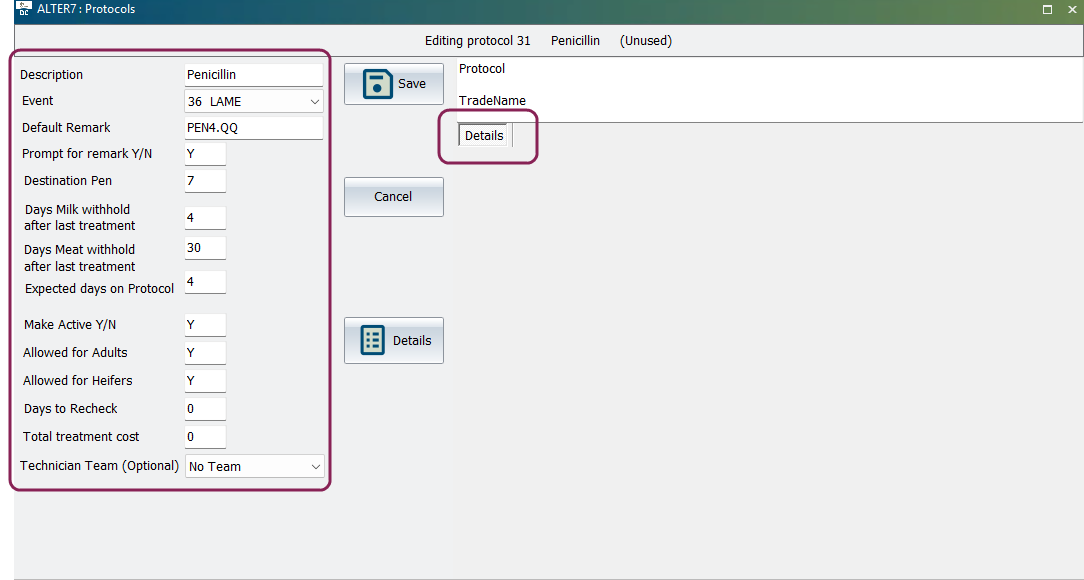
Core Protocol Settings
Use the guidelines below when entering data in this section:
- Event: Use this parameter to link a protocol to a specific diagnosis. When you enter this event for an animal, DairyComp will automatically suggest this protocol.
- Destination Pen: Use this option to automate animal movement. You can enter a specific pen number or type "H" to be prompted for an available hospital pen during data entry.
- Expected days on Protocol: Use this field to define the length of the treatment. This value determines the duration shown in the Select Protocol window when you add a new protocoladd a new protocol.
- Adult and Heifer: Use these checkboxes to control visibility. This ensures that adult-only treatments don't clutter the list when entering data for youngstock.
- Days to Recheck: Set this value if you want the system to flag the animal for a follow-up physical inspection after the treatment period ends.
- Milk and Meat: Review these withdrawal fields to ensure they align with your dairy's safety standards. If using CowCare, these are calculated automatically based on the linked drugs.
Details Tab
The Details tab allows you to manage non‑medication instructions for the treatment plan. Add or Edit custom Days Remarks (such as “Check temp” or “Check quarters”) to display specific reminders on the days you define, ensuring consistent, specialized care. Remarks entered here automatically flow to your daily task lists. They appear on the hospital report (when using the \H switch) and are synced to the Pocket CowCard mobile app. See Manage Hospital List Queues in Pocket CowCard to learn more about hospital lists.
To create a new protocol, click Add from the main window. This opens the Select Protocol window:
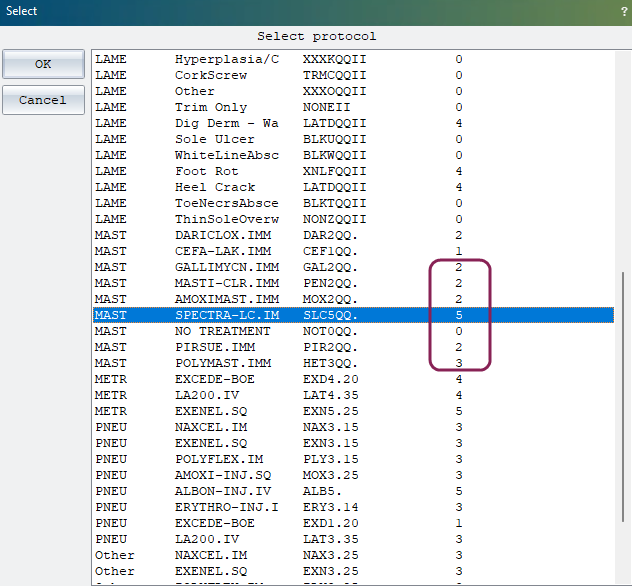
The numbers on the right side of this window represent the Expected days on Protocol currently defined for that condition.
Once you select a condition from this list, the protocol editing window opens. See Change a Protocol for details on configuring the settings and drugs for your new protocol.
If the exact protocol you want to add is not visible for your specific health event, use one of the following methods to create it:
- Modify an Existing Event Protocol: If the treatment setup exists under a different disease event, you can select it to use as a template. Once the protocol editing window opens, change the Event field to link it to the proper disease event in your cowfile.
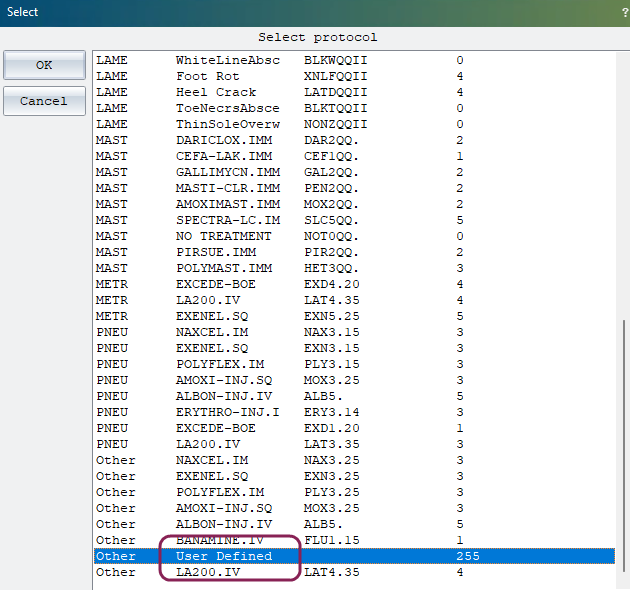
- Create a Custom Protocol: If the protocol does not exist anywhere in the selection window, scroll down and select the User Defined protocol (located second from the bottom of the list). This opens a blank template where you can manually define all parameters, including the description, linked event, and treatment details to match your dairy's needs.
The options under the Advanced menu let you configure global settings for your protocol table.
Protocol Prompting
This menu allows you to manage the behavior of protocols globally.
⚠️ IMPORTANT: Do not use the global protocol options below without direct assistance from VAS Support. Making changes here can disrupt daily data entry and corrupt historical tracking.
- Make all protocols INACTIVE (Never prompt): This disables protocol prompting entirely during event entry. Do not select this unless instructed by support, as it stops DairyComp from suggesting vital treatments and safety withdrawals when recording health events.
- Make all protocols ACTIVE: This ensures every defined protocol is available for selection during data entry.
⚠️ IMPORTANT: Protocols that have ever been used on your dairy should never be deleted or cleared. Wiping the table destroys your ability to run accurate historical analysis on past event data. If you no longer want to use a specific treatment, change its individual status to inactive instead of wiping or deleting it.
Set Up Items
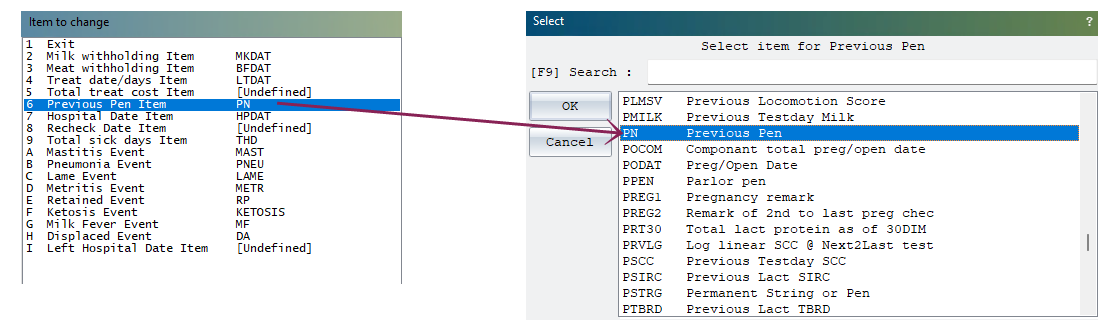
This option lets you map your protocols to specific cowfile items. This ensures data like the milk withholding date (MKDAT) or treatment date (LTDAT) are stored correctly. Correct mapping is essential for hospital reports and safety alerts to function.
Use the following guidelines when setting up items:
- Mapping Process: To set up items, first select the system item to change (for example, Previous Pen Item), select the corresponding item abbreviation you want to use from your cowfile(for example, PN), and click OK.
- Common Item Names: The item names and types displayed in this section are common, standard system names. Because every dairy's cowfile configuration can vary, contact VAS Support if you have any questions about which specific items are required for your setup.
🗒️ NOTE: Certain standard items, such as lame event (LAME), can only be set using the ALTER9: Events command.
Prompting Order
Customize the order in which protocols display in the Select Protocol window by dragging and dropping them into their desired positions. Place your most common treatments at the top of the list to speed up daily data entry and reduce selection errors.
Lameness Manager
The Lameness Manager is a specialized configuration tool that acts as a "filter" for your protocols, ensuring that when a hoof-health event (like LAME) is recorded, you're presented with a curated list of relevant foot treatments rather than the entire protocol library.
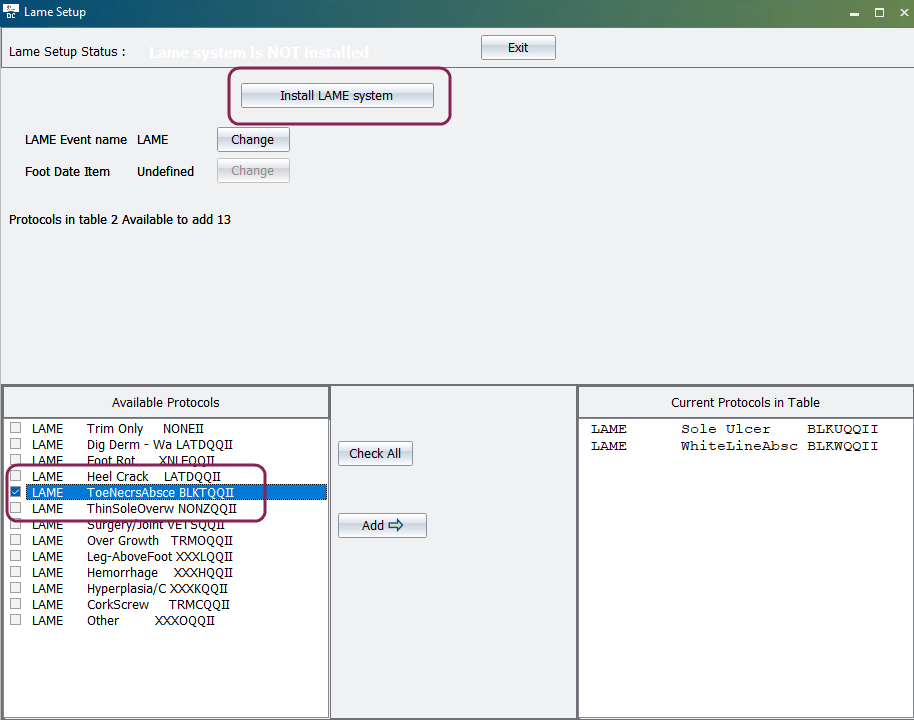
Use the following guidelines when working with the Lameness Manager:
- Installation: You must install the Lameness Manager before you can use it. If the message "Lame system is NOT installed" appears at the top of the window, click the Install LAME system button.
- Available Protocols: This list shows every protocol currently defined in DairyComp for the event name selected in the LAME Event Name field. Check the box next to a protocol and click Add to flag it specifically for lameness use.
🗒️ NOTE: You must select at least one protocol and move it to the right-hand pane before the system will allow you to install the Lameness Manager.
- LAME Event Name: This defines which event code (typically LAME) triggers this filtered list during event entry. Click Change to map it to a different health event if necessary.
- Foot Date Item: This maps to a specific item (typically FTDAT) that automatically records the date of the last hoof-health action for reporting and trim schedules.
As treatment plans change over time, you may need to retire certain protocols.
Use the following guidelines when managing protocol status:
- Inactivating protocols: When you are done using a specific protocol, consider marking it as Inactive rather than deleting it. To inactivate a protocol, select N in the Make Active Y/N field in the protocol's core settings .
- Historical analysis: Keeping retired protocols in the table (but inactive) allows you to continue running accurate reports and analysis on previous treatment history.
- Active list: Inactivating a protocol removes it from the selection picklist during event entry, preventing you from choosing outdated treatments by mistake.