Install DairyComp on a New Computer
4 min
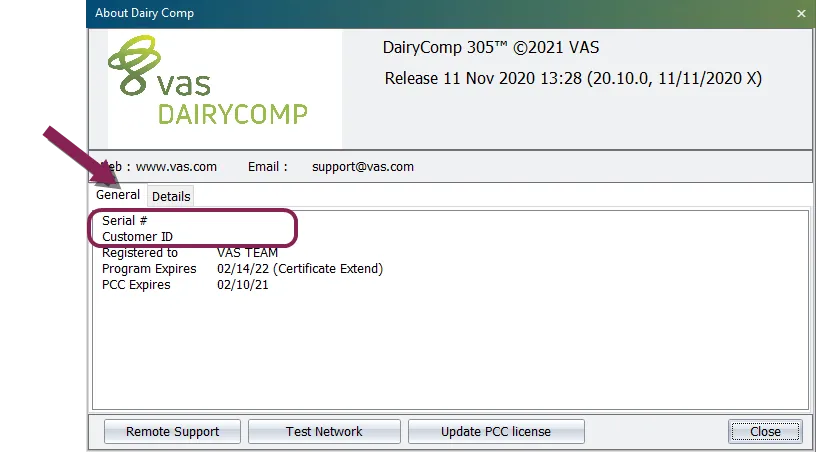
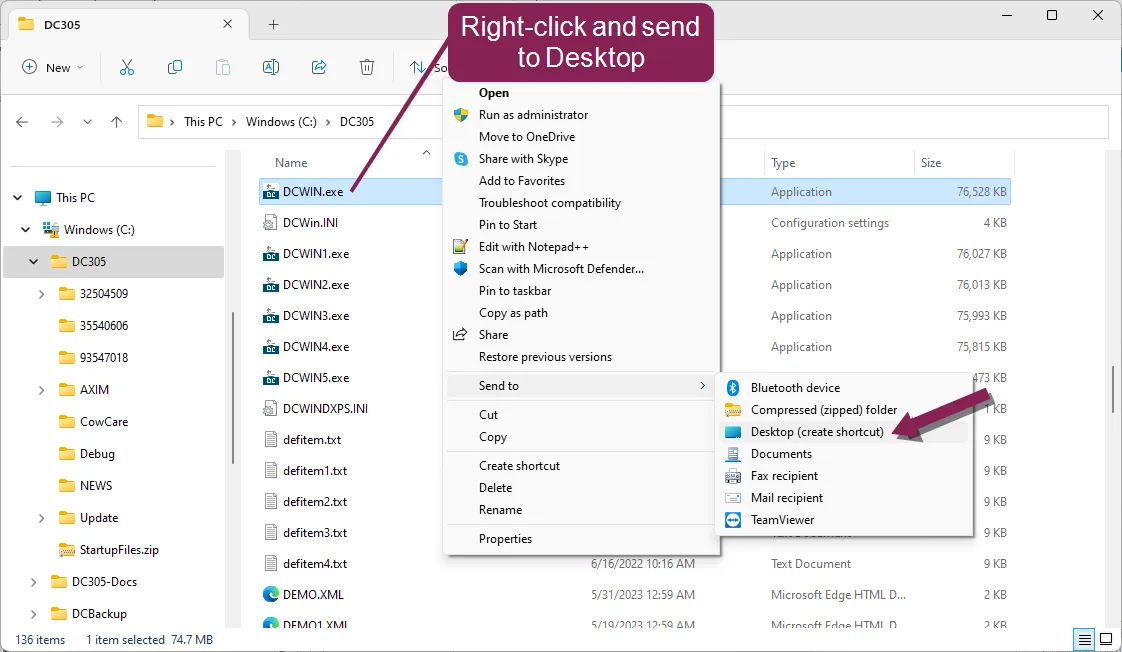
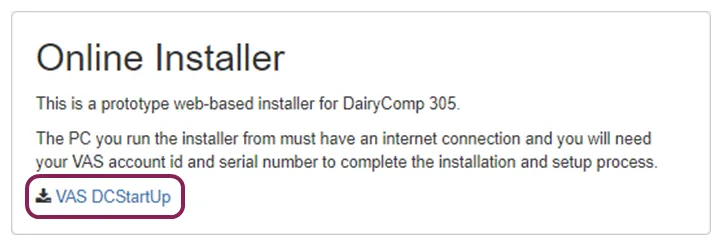
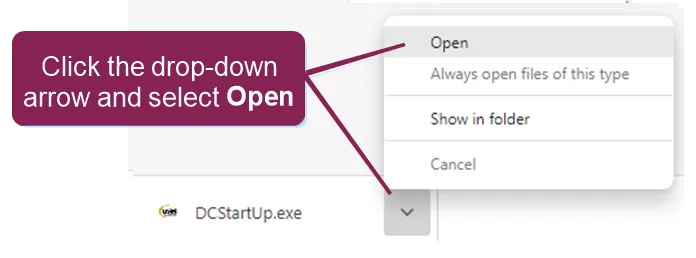
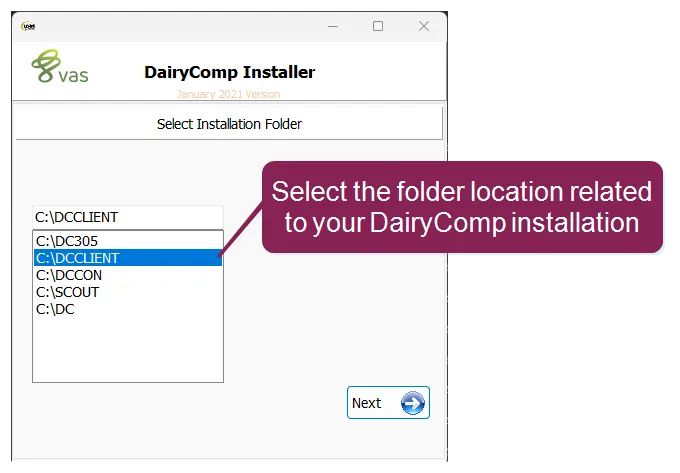
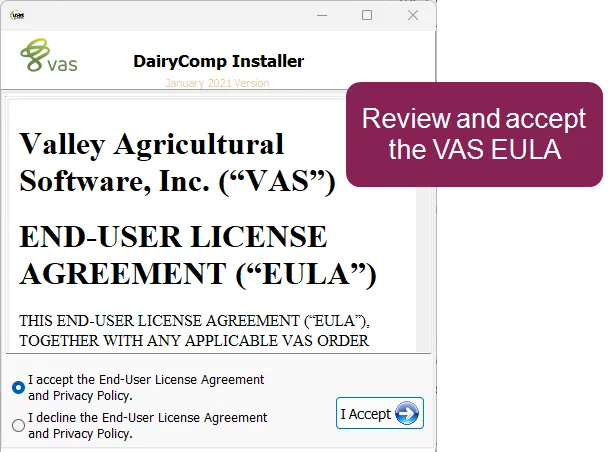
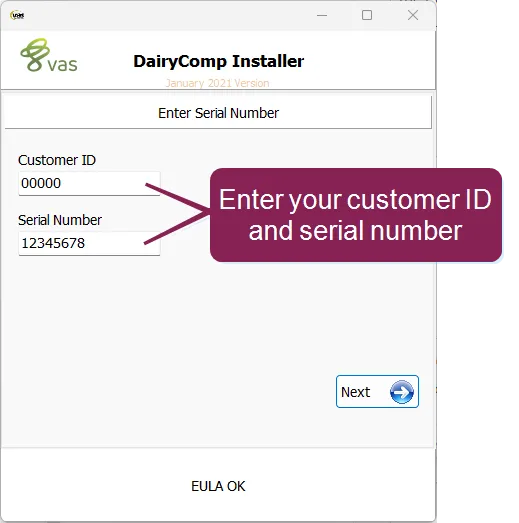
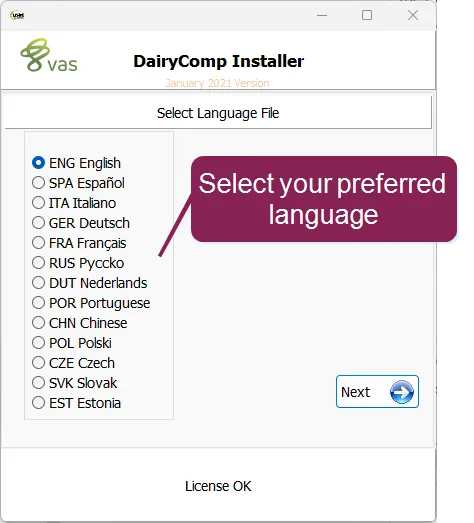
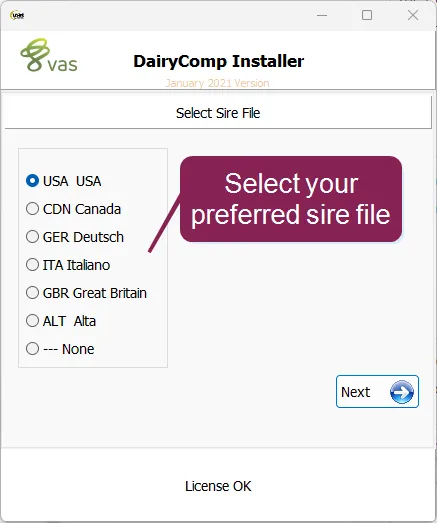
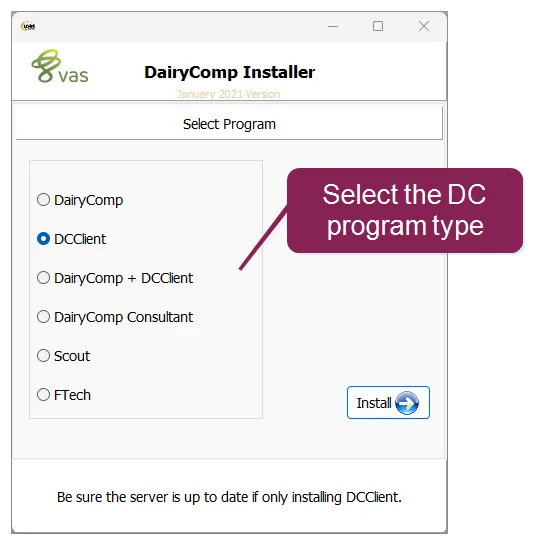
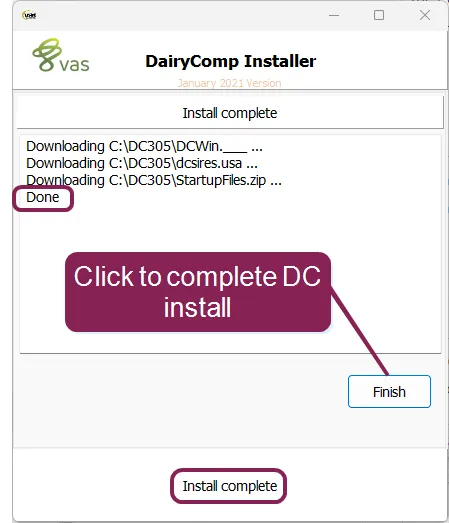
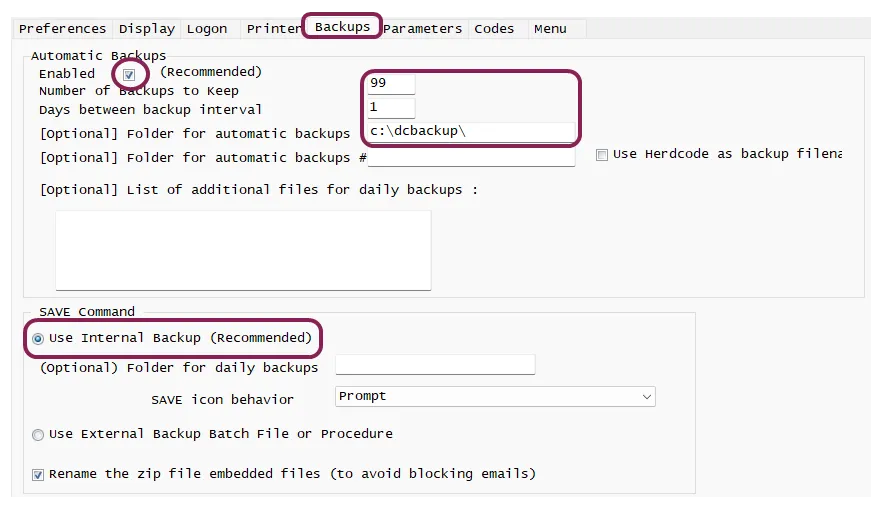
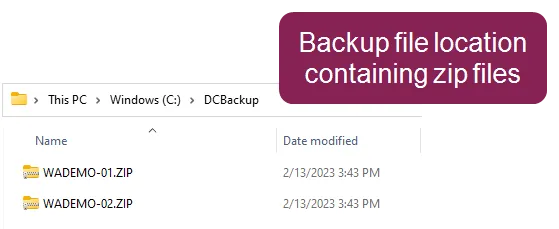
\<font color="#67854e">question\</font> i have a new computer and need to install dairycomp on it what do i need to do? \<font color="#67854e">answer\</font> first, determine if you can install it on your own (see guidelines below) if so, proceed with the instructions provided below \<font color="#f97316">important before you start\</font> identify whether you can do this on your own or need help from vas support docid\ erznbnh1ww36p9q6rnppv \<font color="#f3f4f6">you can do this on your own if either of the following is true \</font> you have a dairycomp consultant version you have a stand alone dairycomp on farm version \<font color="#f3f4f6">you need help from vas support if one or more of the following is true \</font> you are using the vas pulse platform you have a daily milk meter interface running you have a heat detection interface running you are using pocket cowcard on either a psion or an android device you have a dairycomp server/client network version of dairycomp | \<font color="#67854e">if you have the correct version to complete the move on your own, then let's get started!\</font> step 1 obtain your account (customer id)/serial number you can locate your account number (also called your customer id) and dairycomp serial number in the about dairycomp window to open the about dairycomp window, select help > about from the dairycomp menu your customer id and serial number are displayed in the general tab of this window note write down the customer id and serial number you will need this information to install to the new computer step 2 (optional) transfer dairycomp to a new computer if you do not have access to the old computer, proceed to step 3 install dc305 on the new computer docid\ klyuajxjhk6pcdc6tsmxj if you still have access to the old computer, follow these steps to transfer your data, your customized dairycomp menu, and any setup that is unique to your dairy copy/paste the needed folders from your old computer to a usb flash drive \<font color="#67854e">for a dairycomp on farm program, the folders are \</font> c \dairycomp (or c \dc) c \herds \<font color="#67854e">for a dairycomp consultant, the folders are \</font> c \dccon c \herds insert the usb flash drive into the new computer copy/paste the above folders to the c \ drive on the new computer \<font color="#f97316">important\</font> these folders must be placed directly in the root of the c \ drive on the new computer; do not put them inside a “programs” folder or any other location navigate to the c \dairycomp folder, right click on the dcwin exe file, and select send to desktop (create shortcut) step 3 install dairycomp on the new computer use this step if you are installing a dairycomp client, dc shadow, or dc consultant version on your computer if you are installing a dc server version, please contact vas support docid\ erznbnh1ww36p9q6rnppv open a browser window and navigate to http //curtis vas com/install http //curtis vas com/install this opens a dairycomp online installer page \<font color="#f97316">important\</font> this url is case sensitive and must be entered in all lowercase, as shown here when entered correctly, it takes you straight to the online installer page shown in the next step click the vas dcstartup link at the bottom left to launch the dcstartup exe file run the dcstartup exe file this process varies by browser \<font color="#67854e">chrome\</font> check the bottom left corner for the file dcstartup exe click the drop down beside it, and select open \<font color="#67854e">edge or firefox \</font> the installer file downloads and is displayed near the top right corner of the browser window select the installation folder (see the guidelines below if you need help with this) select the folder location to match the folder you copied in step 2 (optional) transfer dc305 to a new computer docid\ klyuajxjhk6pcdc6tsmxj if you were unable to access your old computer in step 2, refer to the folder names below and select the one that matches your version of dairycomp • c \dcclient client site connecting to a network version • c \dccon dairycomp consultant version accept the end user license agreement (eula) the eula stresses the fact that you own your data and vas will never access or share your data without your expressed permission accept the vas terms and conditions agreement enter the customer id and serial number (or accept it if the system auto populates it for you) these will be the numbers you wrote down in step 1 obtain your account (customer id)/serial number docid\ klyuajxjhk6pcdc6tsmxj select your preferred language select the preferred dairycomp sire file if your country is not listed, select usa select the type of program you are installing as the dairycomp installer runs, you will see files being copied wait for the install complete message, and click finish step 4 launch dairycomp on the new computer and run the dairycomp updater the install routine creates a dairycomp for windows icon on your desktop find this icon and double‑click it to open dairycomp if the program opens, click here to continue you will see a screen asking to register this computer continue with this option if this license (customer id/serial number) had been installed previously on a different computer, you will be asked if you want to unregister the old computer proceed with unregistering so that you can move the license to the new computer once you are in dairycomp, select help > check for updates from the dairycomp menu bar the web installer contains only the dairycomp installation files so that it's quick and easy to download; you must run the updater to get the remaining support files you're done! you can start using dairycomp on your new computer! if installing dairycomp version 22 4 0 or earlier, click here to continue if you are installing a dairycomp version prior to 22 5 0, java must be available on the same machine as dairycomp to support installation and periodic web updates to install java, navigate to www java com http //www java com/ and follow the options to download and install java for free after the installation is complete, you will have to unzip a backup of your data and place it in a folder you've created, typically named c \herds\dairyname\ you may need to contact vas support docid\ erznbnh1ww36p9q6rnppv if you are not comfortable creating folders and extracting zipped data if the program does not open, click here to continue if the program displays an error message that says this program does not support a version 8 cowfile , you can update dairycomp without opening the program open your web browser and navigate to https //curtis vas com/updates http //www vas com/update select the option to keep the update jnlp file if asked, and then open or run this file this opens the web updater click next to continue confirm the main contact name and email address for this account if the end user license agreement (eula) page is displayed, review the agreement, and click accept at the bottom of the page to continue this should begin downloading the necessary files, one of which should be your license file when the web updater completes, it should automatically open dairycomp create a destination folder for auto backups the default location is c \dcbackup\ be aware, however, that this places your backup on the same drive as your data, so you may risk losing both your data and the backup in the event of complete hard drive failure an external hard drive or a dedicated usb flash drive is recommended to keep your backups in a different location than your main cowfile you can set your backup options in the dairycomp setup command docid\ cti1v3j5goytwlrwxshez menu verify your backup options by entering save\f in the command line, and then checking for a zipped backup file in your target destination with a current date and time stamp the image below shows the backup to c \ however, an external hard drive or usb flash drive is preferred \<font color="#67854e">you're done! you can start using dairycomp on your new computer!\</font>