Events Command
2 min
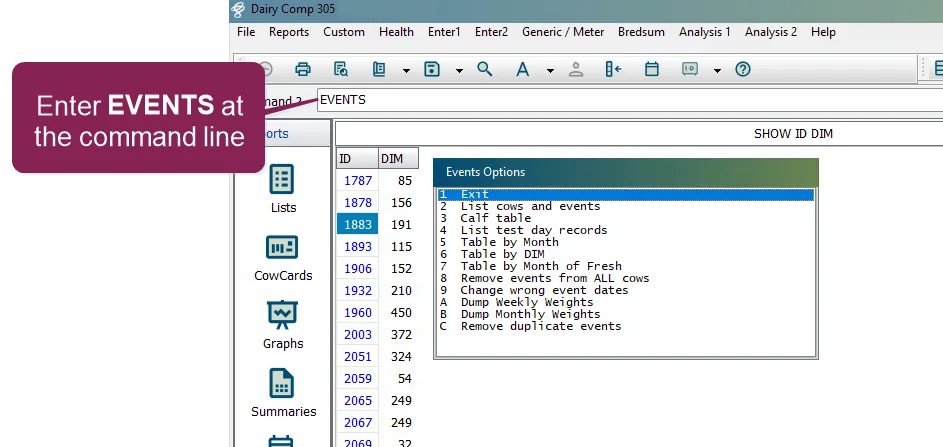
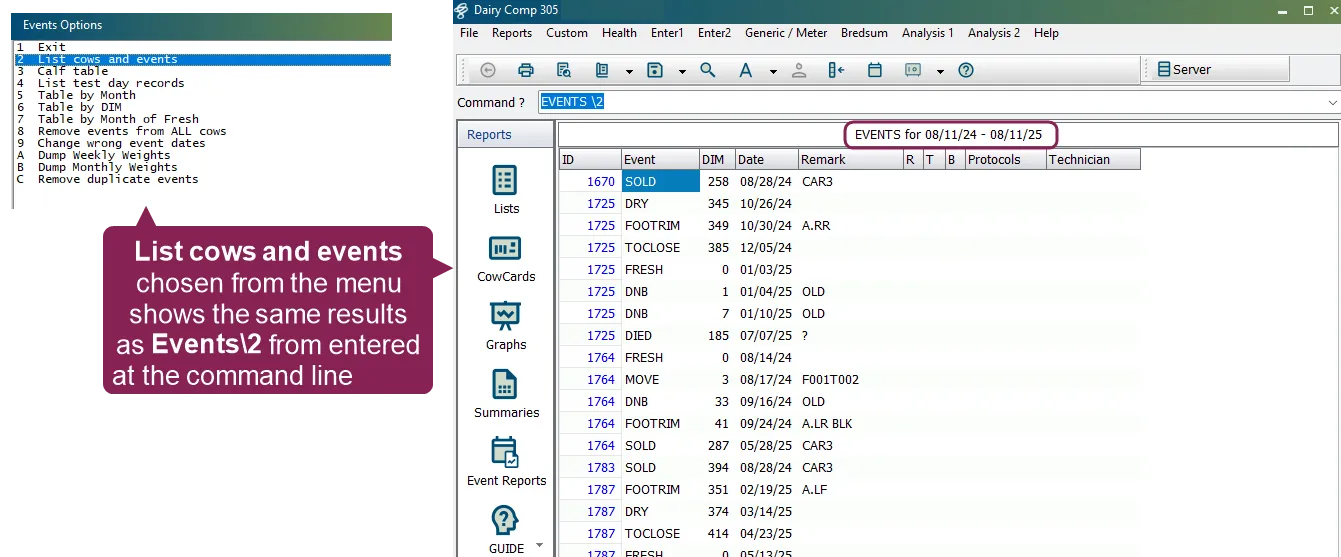
the events command is a powerful and versatile tool used to retrieve, summarize, and analyze historical event data for individual animals or the entire herd it goes beyond the active cowfile by automatically accessing archived records, providing a complete historical overview there are two ways to use the events command event options menu choose from a list of options for basic reports using default settings and no customization command line mode enter the events command along with a string of parameters to customize your report, such as for statements and switches events options menu to open the events options menu, enter events in the command line the options in this menu directly correspond to the numbered command line options (explained below) for example, selecting list cows and events from the menu is the same as running events\2 from the command line this option creates a complete list of events for every animal id notice that the report shows the events per animal for the past year (08/11/24 to 08/11/25 in the example image) this is because running reports directly from the events options menu does not allow you to customize them for more detailed and customized reports, you'll need to use the command line docid\ xyfyzzmujfmeymcylrf4e see report types docid\ xyfyzzmujfmeymcylrf4e for detailed descriptions of the options on the event options menu command line mode to build custom reports without using the event options menu, the following format allows you to create a powerful one line command events \[item list] \[event codes] for \[condition] by \[item] \n\[switches] \[item list] this is an optional list of fields (like id, pen, or dim) to include in your report \[event codes] a list of events you want to focus on (e g , fresh bred) this part is only used by specific reports, such as events\2 for \[condition] an optional filter to narrow your report to a certain group of animals (e g , for pen=10) by \[item] an optional statement to group the report's output by a certain field \n a backslash followed by a number n that selects a specific report from the events menu this is the key part of the command that tells the program which report to run \[switches] additional single letter switches that customize the report's output and behavior click below for two examples of actual events commands and a breakdown of how they work run the list cows and events report events id fresh bred preg for pen=10 \2s entering this command does the following it lists the id of each animal it filters the report to show only fresh , bred , and preg events it only look at animals that are for pen=10 the \s switch prompts you to select a date range for the selected events run the calf table report events for lact=2 \3s entering this command does the following this report displays the calves born for animals entering their second lactation ( for lact=2 ) \s prompts for a range of fresh dates general switches (for customizing reports) add these single letter switches to a numbered report to customize results \a use archive mode, which includes live cows and those waiting to be archived, but not cows that have already been marked as dead \b include both live and dead animals in the report \c count number of preg/open events; also ignores edat and uses bdat on purchased animals \e include the expected milk column in the output \h include the herd code in the output \i inquire, which means the program will ask you to select which events to include \o \ orientate the calendar months by date order, not calendar order ( events\5 ) \p print the report automatically \q \ quantitate protocol usage for an event \r remember the current report settings for later use \s select a date range, asking you for a start and end date for example, \s30 would show data from the last 30 days \v include extra events or dim and ec in event dumps \x disable archive file searching \y include youngstock (heifers) in the report \w displays results by day of the week \z include the event row even if the event count is zero remembering reports for later use the \r switch allows you to save a complex report setup so you can run it again later with a simple command create your full command with the desired parameters and the \r switch, such as events id pen dim \2ir the program will then prompt you to save the settings by giving it a number (0 64) once saved, a file (e g , events35 hdr) is created in your dairycomp folder to automatically run the same report in the future, run events\r35 report types below are the main reports you can run with the events command, either from the events options menu or from the command line using a switch list cows and events (events\2) this command creates a list of cows with the selected events it shows you a clean, simple list of every time an event happened this command uses the \[item list], \[event codes], and for \[condition] parts of the full command syntax command line example events id pen dim fresh bred for pen=10 \2si will list every fresh and bred event for cows in pen 10, including their id, pen, and days in milk, then prompt you to choose a date range calf table (events\3) this command creates a detailed table of calf information about freshenings by default, it looks at the last year of data the percentages are calculated as following none = fresh with no known calf information %twins = twins/fresh %female = female / (male + female) %dead = dead / (alive + dead) %m\ dead = m\ dead/male %f\ dead f\ dead/female sold count is the number of calves born by not added to dairycomp dcc is the count of fresh events where cow is outside dcc (days carried calf) range of 266 294 (normal gestation) command line examples events for lact=1 \3 creates a calf summary report only for first lactation cows events\3 by %190 psirc 7 creates a calf table report grouped by semen type (u unsexed, s sexed, b beef semen) list test day records (events\4) this command is a specialized utility that writes test day records to a disk file the records are exactly as they appear on the test days tab of the cowcard this is often used for advanced analysis with other software the command can be customized using for statements and switches command line example events for pen=20 \4s this command runs the \4 (list test day records) utility it filters the data to only include animals that are for pen=20 \s prompts for a range of dates table by month (events\5) this report summarizes all events that happened each month this is a good way to track the overall activity of the herd over time, especially for scheduled events like monthly pregnancy checks this report is different from events\7 , which groups by the month an animal freshened, not by the month the event occurred note when using a report to count events like preg or open, which are outcomes of other events, the report will by default show the outcome of the breeding to count every time a preg or open event was entered, use the \c switch command line examples events fresh dry \5s this command runs the \5 (table by month) report it specifically summarizes fresh and dry events the \s switch prompts for a specific date range for the report events \5w7 reports all events recorded in the last 7 days table by days in milk (events\6) this command breaks down event counts into groups based on how many days the animal has been in milk (dim) this report shows the distribution of events throughout a lactation for example, you can use it to see at what dim range most breedings or health events occur, helping you identify trends or management issues command line examples events bred for dim>40 \6s this command runs the \6 (table by days in milk) report it only counts bred events it filters the data to only include bred events that happened when the animal had dim>40 (days in milk great than 40) the \s switch prompts for a specific date range for the report events id fdat lact metr mf keto da mast\6 displays transition events (metr, mf, keto, da, mast) by days in milk lists the animal's id, fresh date, and lactation number note this report defaults to showing cows only in order to view lact=0 animals, you must use a \6y switch these animals cannot be merged with this report events\2 and events\5 will allow both cows and calves to be merged if they are not specifically selected table by month of fresh (events\7) this report is designed to group events by the month an animal freshened, not by the month the event occurred this can be a useful way to analyze groups of animals that calved around the same time important important be cautious with this report animals that freshened recently will have had less time to experience other events, which can make the data misleading when comparing across different freshening months command line example events bred for lact=1 \7 this command runs the \7 (table by month of fresh) report it counts bred events it filters the data to only include events for animals in their first lacation ( lact=1 ) the output shows a table with breeding events grouped by the month those first lactation cows freshened note this report defaults to showing cows only in order to view lact=0 animals by month of birth, you must use a \7y switch