Menu Customization
DairyComp has various menu customization tools so you can tailor DairyComp to best fit your dairy's needs. You can add commands to the menu or edit the details of any menu option, like the menu option name or the command that it executes. DairyComp menus are fully configurable by the user!
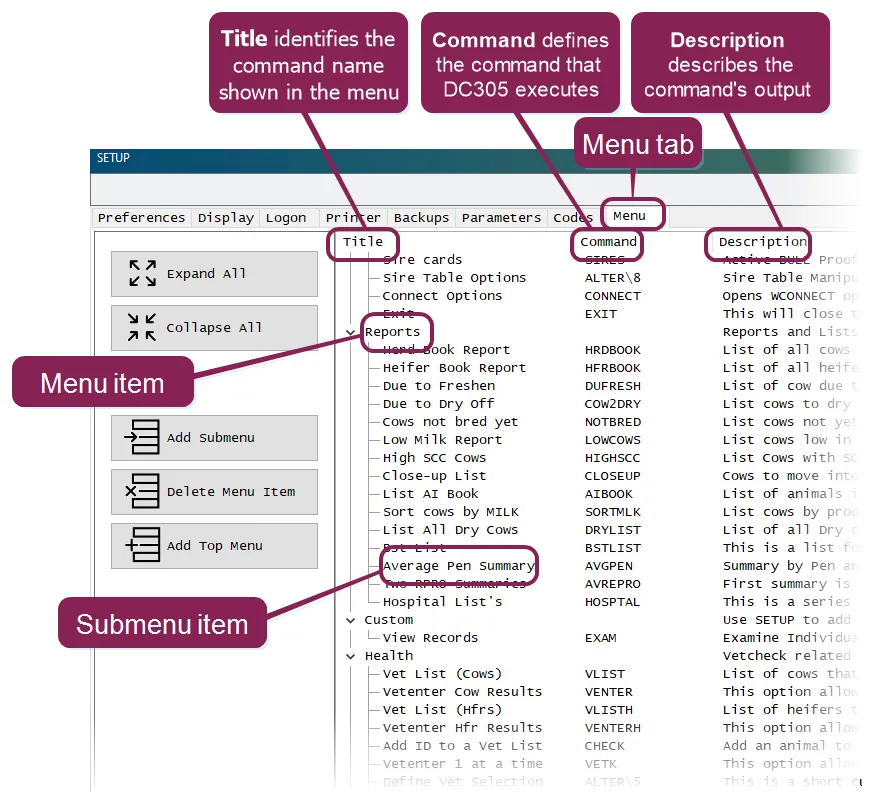
To start customizing your menu, enter SETUP in the command line to open the Setup Window, then click on the Menu tab. The Menu tab shows all the current main menu and submenu items configured for your DairyComp, as well as the commands that run when you click a sub-menu item.
Expand the topics below to learn more:
You can add commands to the DairyComp menu via the SETUP command and then run them from there. Once you find the command you want to add to the menu, watch the video tutorial or follow the steps below:
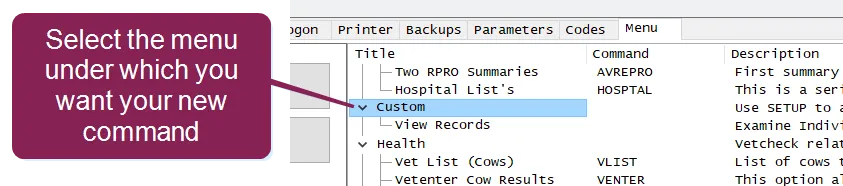
- Click on the menu item under which you want to add your new command, and then click Add Submenu. In this example, we'll add our new command beneath the Custom menu item.
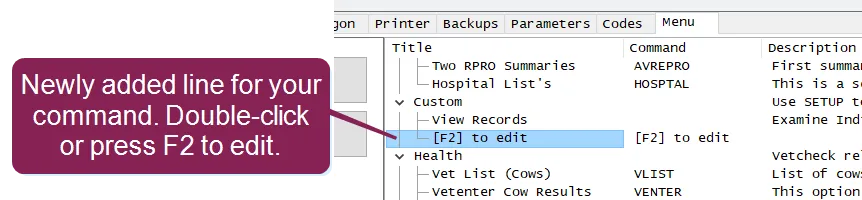
- Once you click Add Submenu, a line for your new command is added to the menu item.
NOTE: You can also add submenu items under an existing sub-menu. For example, you can first create a submenu for reports that you run often, and then add additional submenu items beneath that reports submenu for the actual commands.
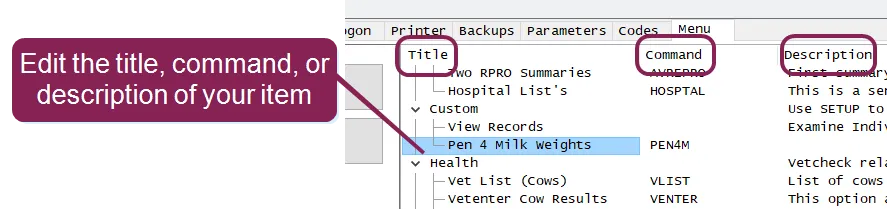
- Add a Title and Command for your new command. New commands must have entries for the Title and Command columns. You can double-click in the column field or press F2 to enter or edit the data.
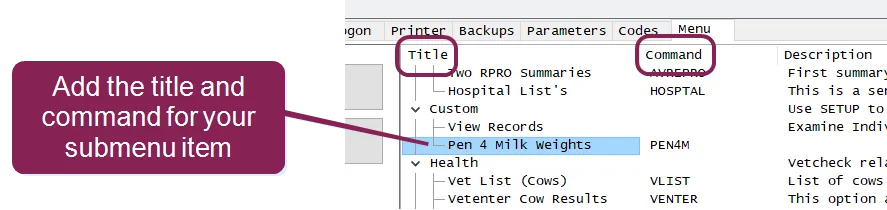
- Title: The text to show in the menu.
- Command: The actual name of the command to execute.
- Description: Additional information about the menu item. Entering data in this column is optional.
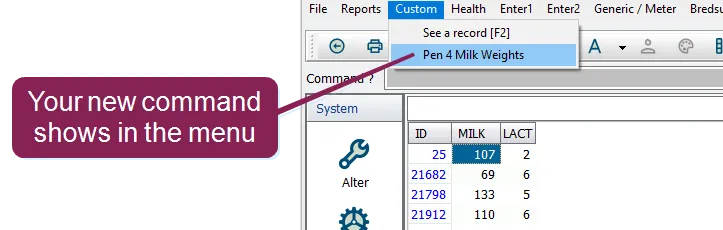
- Once you've entered the data for the submenu item, click OK and then click Yes to confirm the save. The menu now shows the item you just added. You can run the command by clicking on the new menu item.