Advanced Syntax Options
3 min
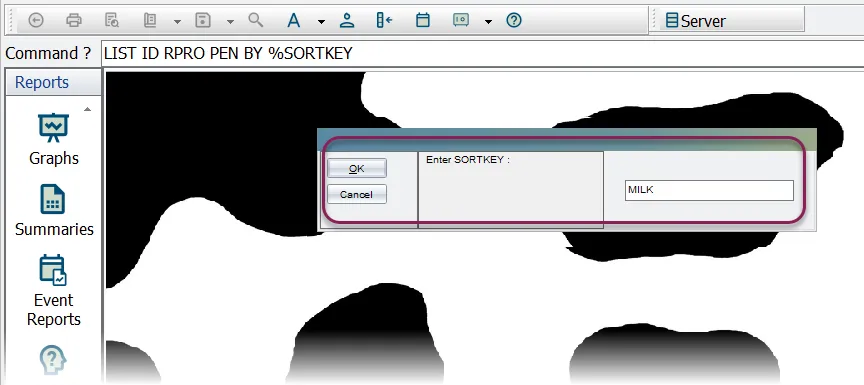
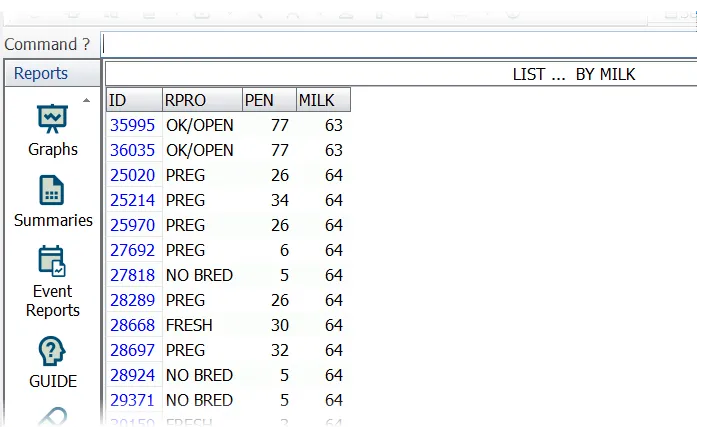
expand the topics below to learn more add codes when entering codes (such as vet codes or event codes) in the command line to generate a report, you must use the code's numeric value, not its alphabetical name for example enter ec=5 in your command line for bred events why? because "ec" is the abbreviation for event codes, and 5 is the event code for bred events you would not enter ec=bred or just bred this syntax holds true for all types of dairycomp codes (i e , reproduction codes, breeding codes, etc ) or conditions one way to include two different groups of animals in the same report is to group your item parameters within parentheses this type of syntax is commonly called an or condition, since you are requesting "this or that" data for example, you can request data from one pen or another pen \<font color="#6b7280">show id pen lact milk for dim\>100\</font> \<font color="#eab308">(pen=1 milk\>60) (pen=4 milk\<50)\</font> the first part of this command produces a list in which all the animals are at least 100 days in milk however, the or conditions—those parts of the command in parentheses—specify which pens those animals must be in and how much milk they had to produce you can also combine different types of data with or conditions for instance, if you want to create a list of animals for potential culling, you could identify animals according to the following criteria open more than 150 days and not pregnant , or bred more than three times, or milking less than 40 pounds and least 100 days in milk in this case, your report command might look like this \<font color="#6b7280">show id lact dopn due tbrd milk for lact\>1\</font> \<font color="#eab308">(dim\>150 cdat=0) (tbrd\>3) (milk\<40 dim\>100)\</font> things to consider when using or conditions \<font color="#67854e">or\</font> conditions must be placed within paired parentheses \<font color="#67854e">for\</font> conditions used in the command must be placed before the or condition \<font color="#67854e">or\</font> conditions are limited to three per command, with no more than three inclusions per condition in the example in the above section, the first or condition contains two inclusions (dopn>150 due=0) , the second has one inclusion (tbrd>3) , and the third has two inclusions (milk<40 dim>100) \<font color="#67854e">or\</font> statements cannot be embedded within other or statements for instance, this is not allowed ((dcc<215 (fcm<45) (scc>1000)) \<font color="#67854e">or\</font> conditions can be used with the enter command for automatic or batch entries see reports docid\ htjsqn0tlfixvwx2cnmrk to learn more about batch entries ranges in addition to the operators already mentioned, you can use the hyphen character ( ) to specify ranges for your reports for example pen= \<font color="#eab308">1 4\</font> returns all animals in pens 1 through 4 milk= \<font color="#eab308">50 60\</font> returns all milking from 50 to 60 pounds ranges can also be used in reverse order to exclude particular animals from your report pen= \<font color="#eab308">4 2\</font> returns all animals not in pens 2, 3, and 4 milk= \<font color="#eab308">90 70\</font> returns animals milking less than 70 pounds or more than 90 pounds note using a hyphen/range along with a "not equal to" operator (for instance, for dcc<>0 150 ) will not work and will produce an error message date formats when entering dates for a report, it's recommended that periods ( ) be used as separators, as in 5 17 21 alternatively, the system can also recognize the slash symbol in dates (5/17/21) command substitutions command substitution is a powerful tool for creating partial commands that can be modified at the time of entry, allowing you to change the type and range of data returned by the command when you use command substitutions, the system will prompt you for one or more values when you enter the command to use command substitution, enter a percent sign (%) in the command line followed by a "prompt word " for example, if you enter \<font color="#6b7280">list id rpro pen milk by\</font> \<font color="#eab308">%sortkey\</font> the system will prompt for the by method, which we're calling sortkey then you simply enter the item you want to use in the command in the case above, milk is used, so the results are presented by current milk production note remember that the word you use after the percent sign (%) is merely the prompt word in the example above, we used the word sortkey because it made sense with the command the word you choose for your prompt should make it clear to the user what the system is asking for click here for additional command substitution options command substitutions can be combined in numerous ways sometimes you might want to limit results to certain pens or to certain scc levels you might also want to add additional items to a command the example below shows how you might prompt to add an additional item to your results and limit the results to a chosen level of scc \<font color="#6b7280">list id pen scc\</font> \<font color="#eab308">%what else\</font> \<font color="#6b7280">for scc\>\</font> \<font color="#eab308">%min scc\</font> in this case, the system will first ask you for "what else" you want to show in your results (dim, milk, rpro, etc ) and will then ask you for the minimum scc level to show in the results you can also use substitutions to enter command strings to your commands so if you want to see results for a certain pen, you could answer the above "what else" prompt with the following to limit the results to pen 4 for pen=4 consider using command substitutions to create menus that prompt for the variables you use most often that way, you can cut down on the number of menu commands you need for instance, you can create menu options using command substitutions such as "animals open more than x days" or "animals between dim x and y" to use these options more flexibly see reports docid\ htjsqn0tlfixvwx2cnmrk to learn more related topics troubleshoot the command line docid\ ssof7vqpmqn8mhbhnwmhq