Set Up and Manage Users
3 min
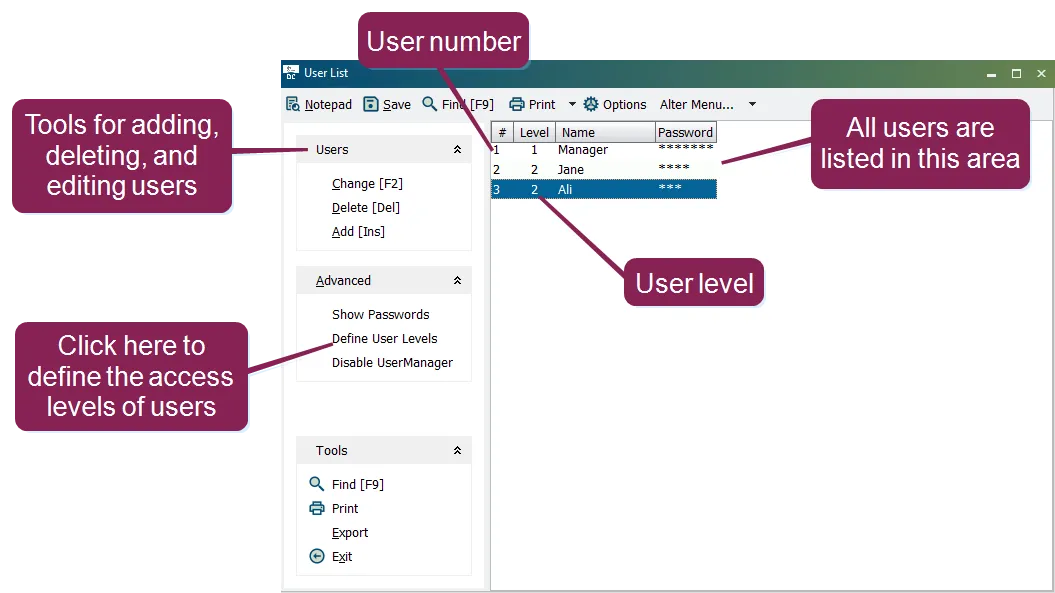
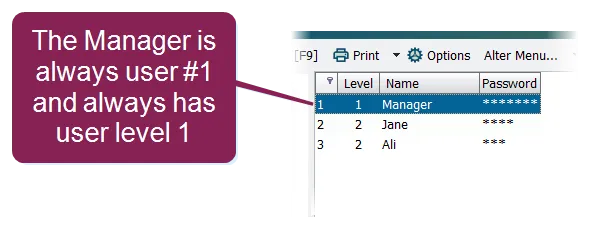
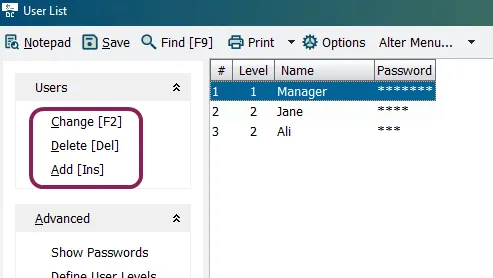
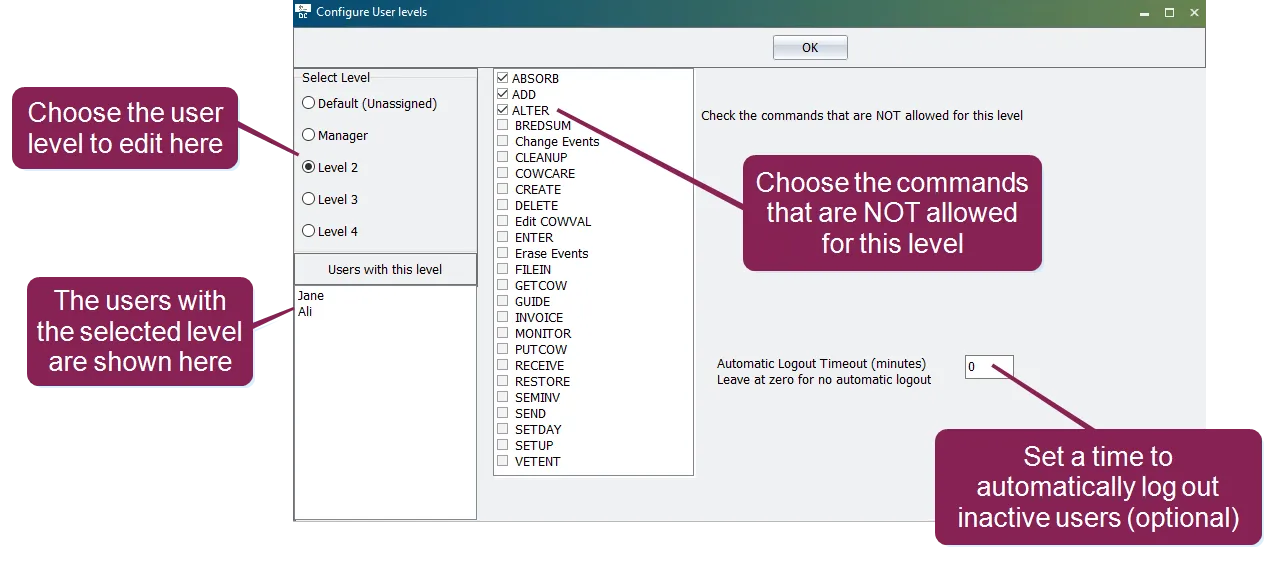
\<font color="#67854e"> question \</font> how can i add and delete users from dairycomp and control their access to the system? \<font color="#67854e"> answer \</font> you can easily add and delete users docid\ wlpuz0mytubqp s7oeipj from dairycomp through the user manager feature this feature also allows you to define the level of access docid\ wlpuz0mytubqp s7oeipj each user has to the system in the command line, enter alter and then choose option g user manager to open the user list window this window lists all of the users configured for your dairycomp it also contains tools for creating and managing users and controlling the level of system access for each user level as illustrated above, each user has a number and a level the user number is simply a numeric identifier for the user the user level indicates how much access the user has to the system no two users can have the same user number, but multiple users can have the same user level the very first time this window is opened for your system, only one user will be listed— manager the manager user is always user #1 and is also always user level 1, meaning that this user has full control over dairycomp remember the following guidelines when using the manager level the manager user account cannot be deleted; there must always be a manager only someone with manager level access can use the alter command to access user management settings the name of the manager can be changed, but the manager will always be user #1 and will always be user level 1 you can, however, have multiple users with manager level access the password for the manager level is initially set to manager it is highly recommended that you change this password expand the topics below to learn more add, change, and delete users you can use the tools under the users section to add, delete, or change dairycomp users follow these guidelines when managing users click add or press the insert (ins) key to add a new user you'll be prompted to add the user under the next available user number, but you can change that you'll then need to add a name, user level, and password for the user when adding a new user, the system will prompt you to add a user level of 0; this is the default user level, but can be changed see define user levels docid\ wlpuz0mytubqp s7oeipj to learn more it is good practice to add a simple, easy to remember password for new users, and then let users change their passwords to something more secure click change or the f2 key to edit a user you can also double click directly on the user name to edit the user's parameters to view the passwords for every user, click show passwords under the advanced section define user levels user levels define which system commands a user can execute for example, a person with a user level of 3 might not be able to use the alter or getcow commands, while a person with a user level of 2 might not be restricted from using those commands under the advanced section, click define user levels to open the configure user levels window to configure user levels, choose the level you want to edit, and then check the boxes for the commands you want to restrict from that level this is important to remember—you are choosing the commands that you do not want users of that level to execute when you're done, click ok once the user levels are configured, you can assign them to users in order to give them the appropriate level of system access to change the user level of an existing user, use the change tool (as explained in add, change, and delete users docid\ wlpuz0mytubqp s7oeipj , above) \<font color="#f97316"> important \</font> user level restrictions only apply to "manually" entered commands (i e , commands entered in the command line or from a dairycomp menu ) they do not apply to transactions from a client or from or to scheduled tasks \<font color="#67854e">the default user level\</font> level 0 is the default user level this is the user level that the system prompts you to assign when creating a new user additionally, this is the level that dairycomp is at if no one is logged in (for example, at system start up) for this reason, it's important to carefully consider the level of system access granted by the default level for instance, if you are using restrictions on levels 2 and 3, you might also want to set up those same restrictions for the default level otherwise, users with level 2 or 3 can simply log out, effectively giving them default level access see login and logout docid\ wlpuz0mytubqp s7oeipj below for more information login and logout in regards to user management, the login and logout commands work as follows login prompts the user for a user name and password and writes the current user name to the activity log logout resets the current user back to the default (i e , unassigned) level note that the system can be set up to automatically log out the current user after a specified period of inactivity