Run Report from Command Line
The DairyComp command line allows you to enter simple commands (such as ALTER or BREDSUM) or saved, predefined command abbrevations (such as COWSDUE or COW2DRY) to launch tools. However, you can also enter command strings to run reports. In this case, the command line syntax is a bit more complex. It can be confusing if you don't recognize what the different parts of the command string represent.
For example, when you see the command below, would you know what each part represents and what you will see in the report after you run it?
SHOW ID MILK LACT PEN FOR PEN=4 MILK>90 DOWNBY MILK
If you're not quite sure, then the tutorial below is for you! Once you begin to understand the basic command line syntax, you can craft reports that meet your exact needs.
Let's get started! Open up DairyComp and then follow the steps below to create a simple report, customize the list, and then sort the results:
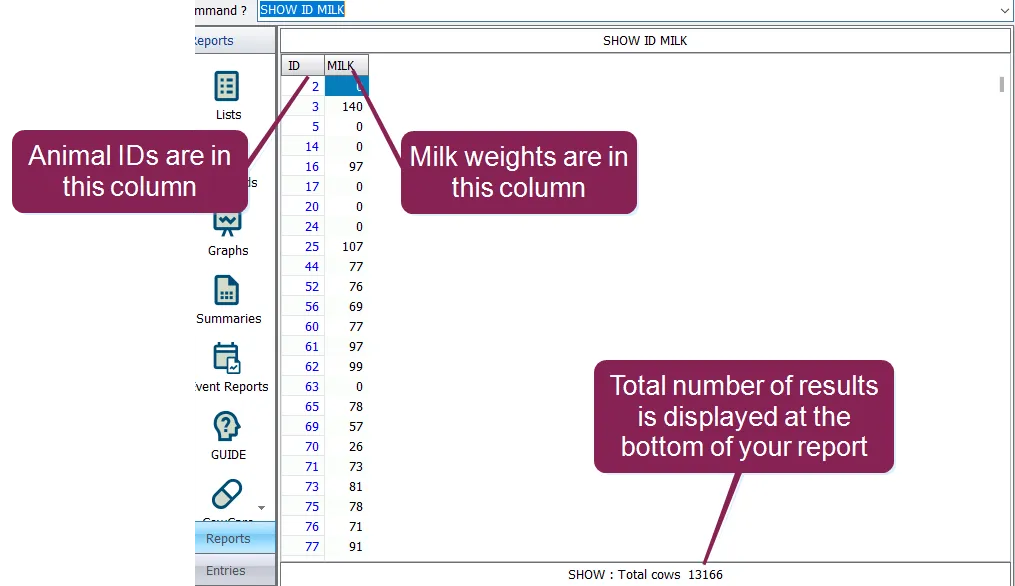
- Let's start by entering a report command. In the command line, type: SHOW ID MILK and press Enter. Congratulations, you have created a simple report! It shows (SHOW) the ID numbers (ID) and milk weights (MILK) for all animals in your cowfile:
- Now suppose you decide you also want to see their lactation number. Press the Escape (ESC) key to get back to the command line, and then press the up‑arrow on your keyboard to bring the last command back.
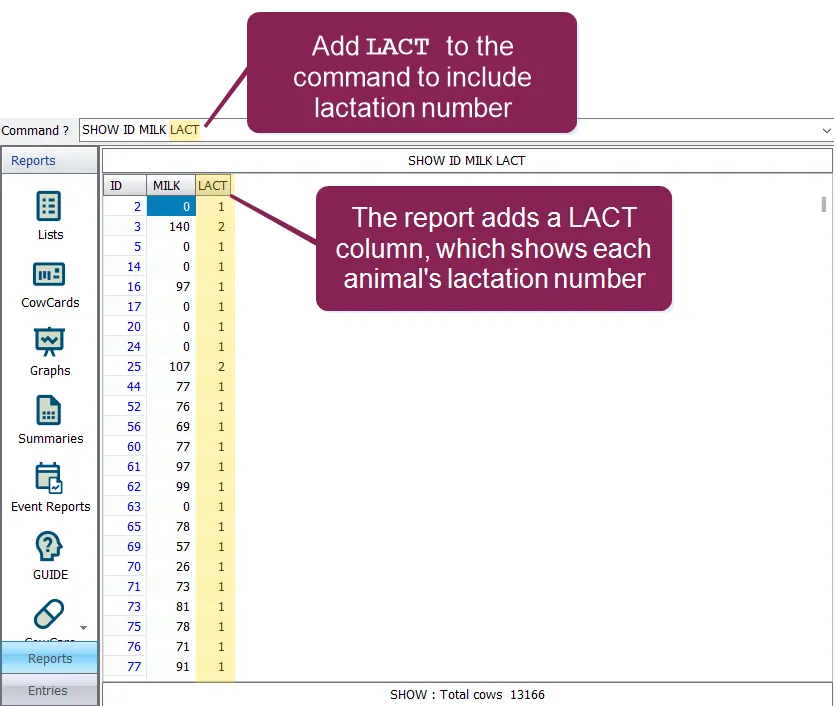
- Then add the item LACT to your command, and press Enter to update your report: SHOW ID MILK LACT Now your report has the lactation numbers in it as well:
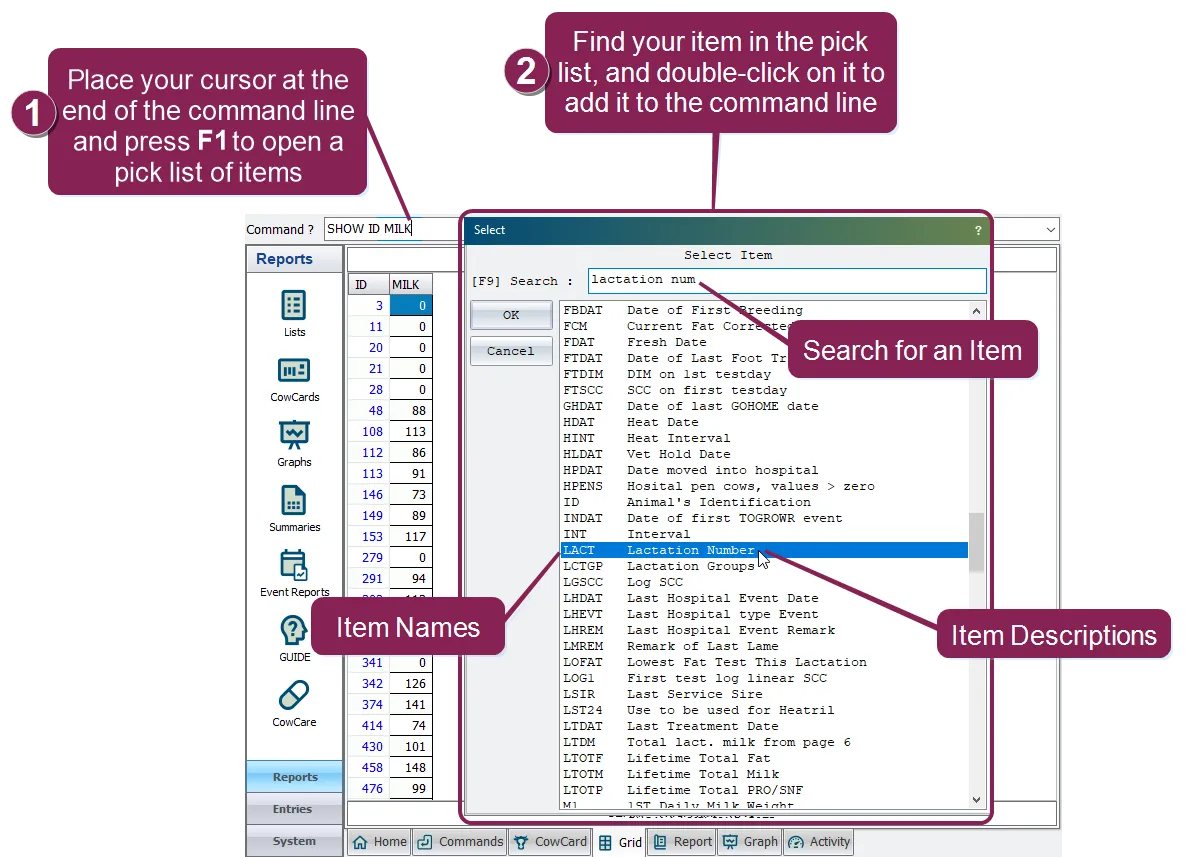
TIP: If you’re not sure what command you need to enter for a specific item, you can pressF1 to view a pick list. From there, you can double-click on an item to add it to the command line:
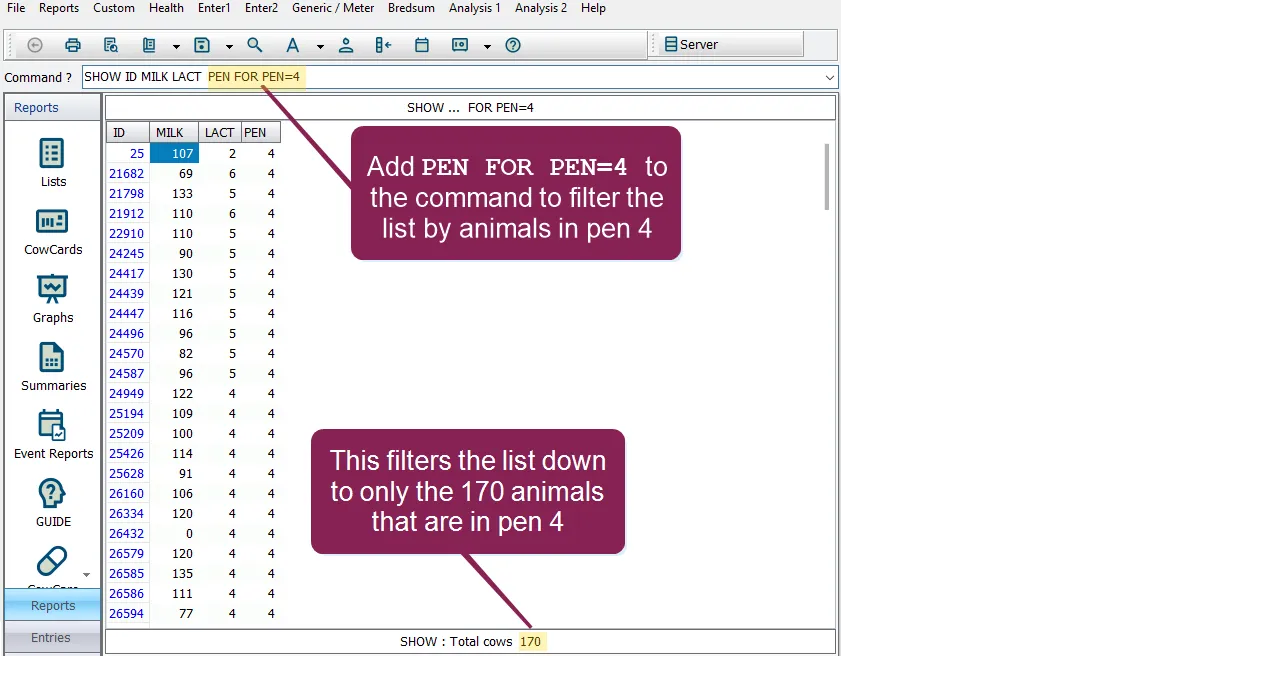
- At this point, note that your report includes quite a long list. This is because it contains all of the animals in your cowfile. Suppose you only want to show animals in a certain pen, say for instance, in pen 4. That’s easy — just add PEN FOR PEN=4 to the end of your command. The first instance of the word PEN tells the system to actually show the pen number. The word FOR in a command tells the report that you want to customize (i.e., filter) your results down to specific conditions— in this case, to show only IDs that are in pen 4. Type the following command and press Enter to update your report: SHOW ID MILK LACT PEN FOR PEN=4 PEN
TIP: Remember you can click in the command line and press the up‑arrow on your keyboard to display the last command you entered.
The updated report still shows the animal IDs, milk weights, and lactation numbers, but now it only shows them for the animals in pen 4. Note that the total number of results at the bottom of the page has changed:
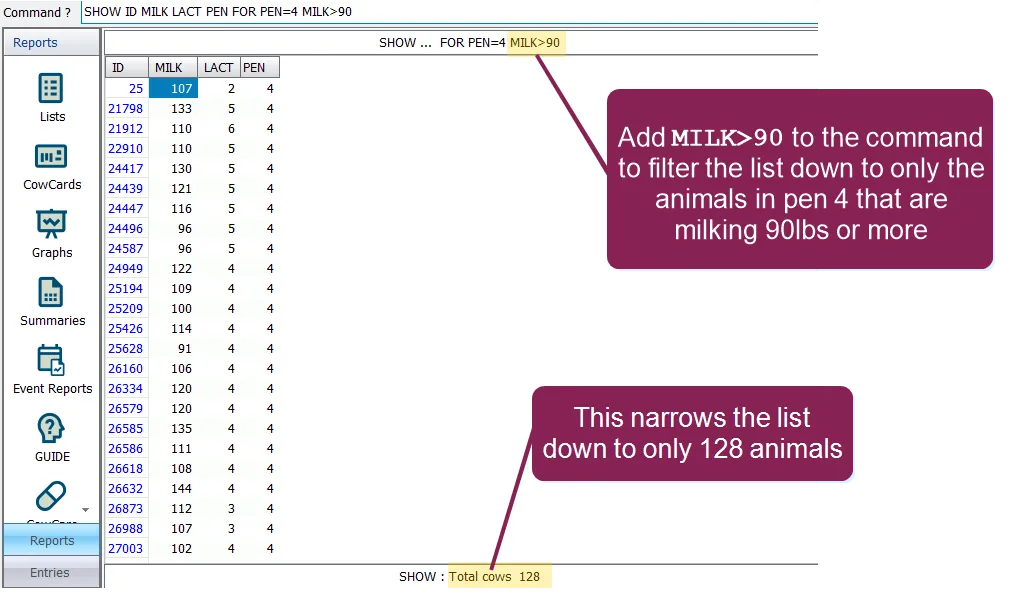
- You can customize your list further if you want. For instance, maybe you only want to include pen 4 animals that are milking over 90 pounds. That’s easy too; just add another condition to your command. In this case, you would add MILK>90: SHOW ID MILK LACT PEN FOR PEN=4 MILK>90
- The last thing you might want to do is sort your list to help bring some order to it. This is easy as well. The word BY means sort low to high and DOWNBY sorts high to low. So to sort your list from highest to lowest milk weight, just add DOWNBYMILK to the end of your command: SHOW ID MILK LACT PEN FOR PEN=4 MILK>90 DOWNBY MILK
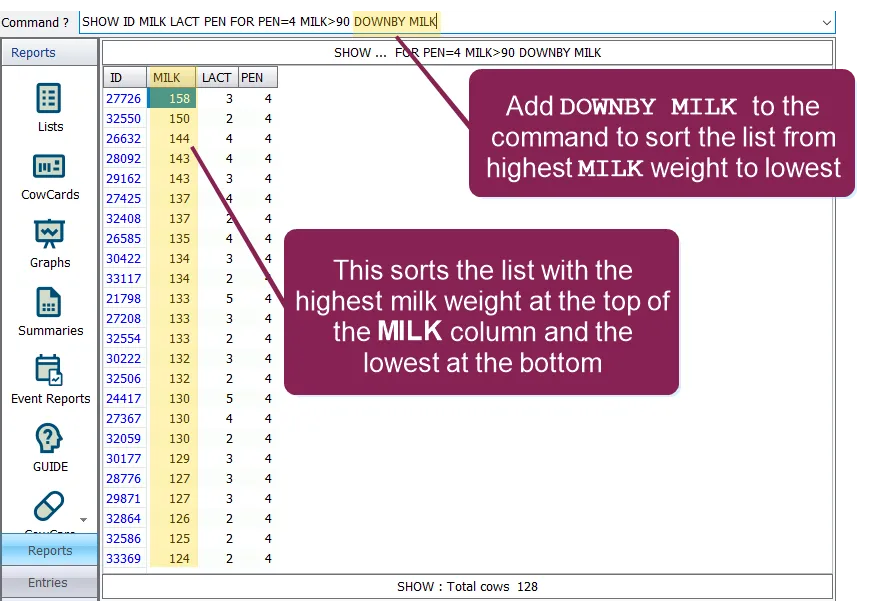
TIP: Note that the last command above is the same one you saw before starting the tutorial. It should make much more sense now!
There are many ways you can customize this simple report to meet your needs, but understanding the options above is the basis for all DairyComp report commands.
If you want to delve deeper into other command line options, see Command LineCommand Line.