Printing
2 min
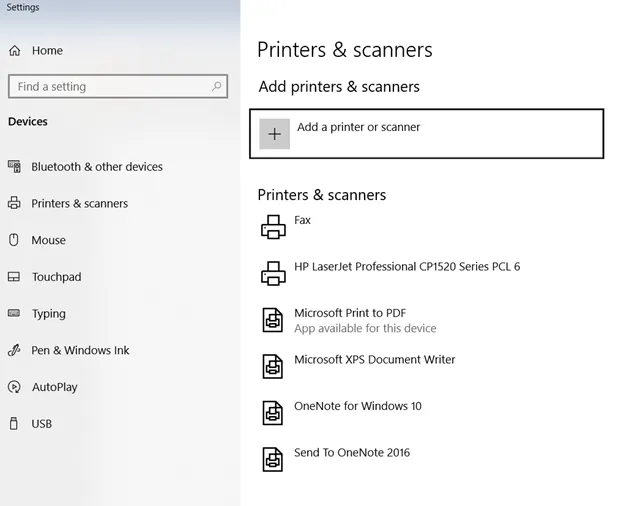
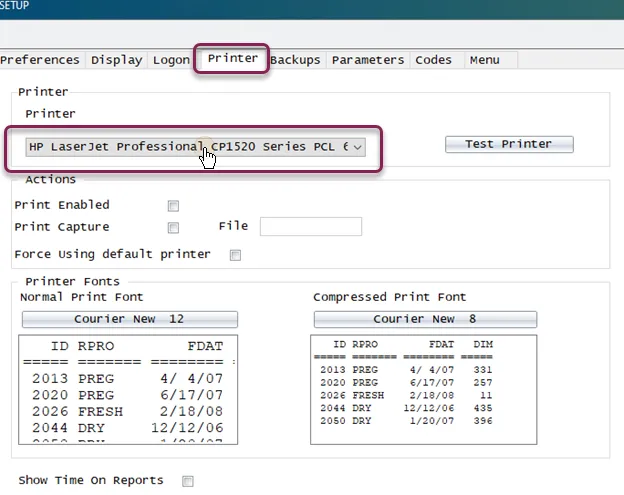
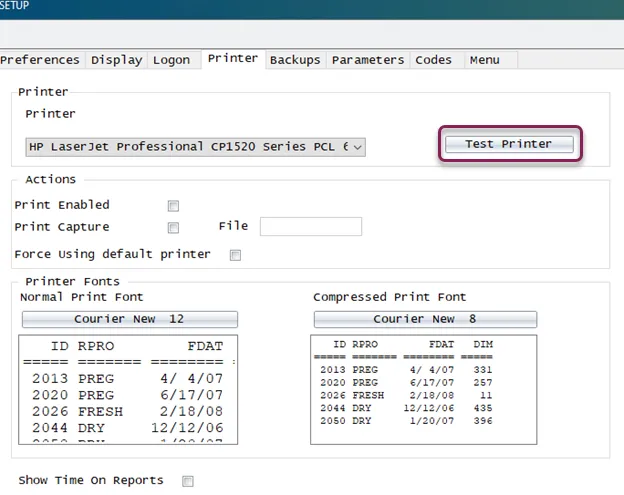
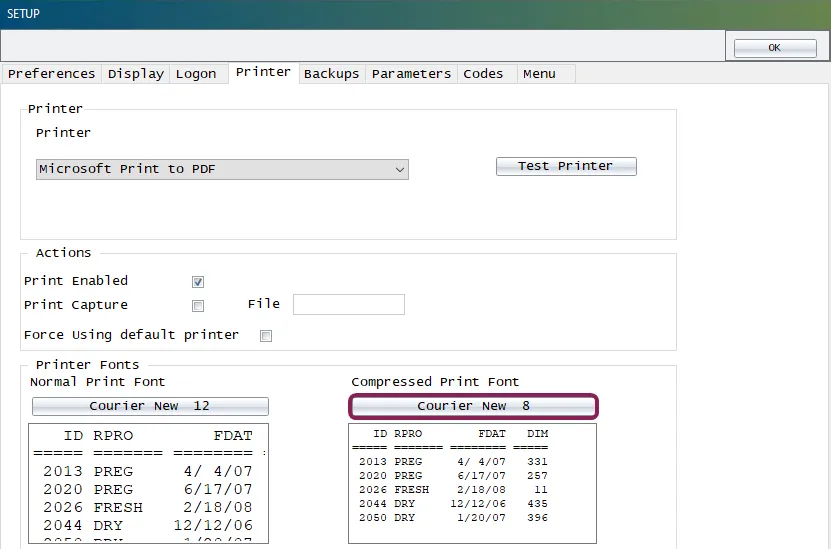
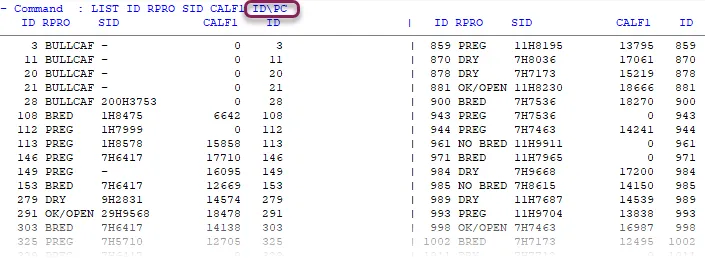
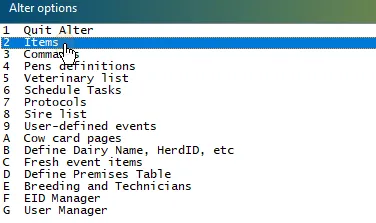
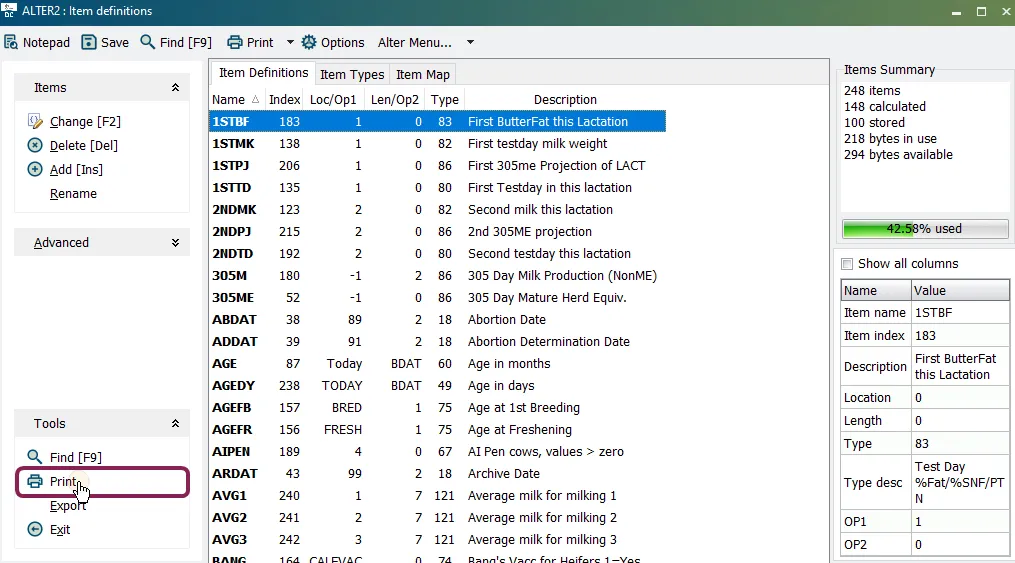
dairycomp gives you considerable printer control you can decide whether to always print reports or pause before printing if you prefer to choose if you do not have a printer available (such as a laptop in the field), you can configure dairycomp to display reports in browse mode docid 2qiptqgqysjfdocvecxpp you can print the contents of most pages by clicking the print button on the toolbar or selecting print from the file menu you can configure individual reports to print in multiple columns or in compressed print you can also select default fonts for the normal and compressed reports expand the sections below to learn about the various ways to printing in dairycomp activate a new printer note before you continue with the procedure below, close dairycomp if the printer has already been installed (per step 1), close and reopen the program follow the steps below to activate and test a newly installed printer confirm that the printer is installed correctly by checking your printers and scanners settings in windows (see example below) make sure the printer is installed correctly, according to the instructions that came with the printer run the cd or download the printer drivers if necessary once the printer is installed, open dairycomp and type setup in the command line to open the setup window select the printer tab in the setup window, and select the new printer in the drop‑down list under printer after you select the new printer, you can test it by clicking the test printer button restart dairycomp after making changes to the printer setup options if printing is enabled through the setup command or by toggling the prt option in the status line to prt on , reports created by the list command automatically print when they are generated reports created with the show command display on the grid and report pages compressed print to print a command's output in compressed print mode, enter the \c switch at the end of the command if you want to customize the font used for standard printing and/or compressed print, navigate to the printer tab in the setup window (opened by typing setup in the command line or under system in the outlook bar) by default, dairycomp allows up to 80 characters per line in a report; if compressed print is used, each line allows up to 132 characters this means that you can have more items listed on each line if you use the \c switch combining the \c and \p switches, meanwhile, prints the maximum number of animals per report note the number of characters per line is based on the font size used for normal and compressed printing using a size other than the default may change the number of characters per line print the item list follow the steps below to print the item list open the alter options window by typing alter in the command line double click the items option the alter2 item definitions window opens click the print option to quickly view the item list, type show in the command line, then press the f1 key on your keyboard print from cowcard for everything you need to know about printing cowcards, see print cowcards docid\ nruj0cuncup59mluray1j