Browse Mode Features
4 min
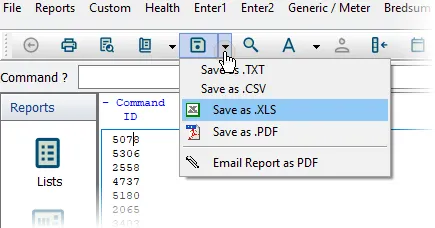
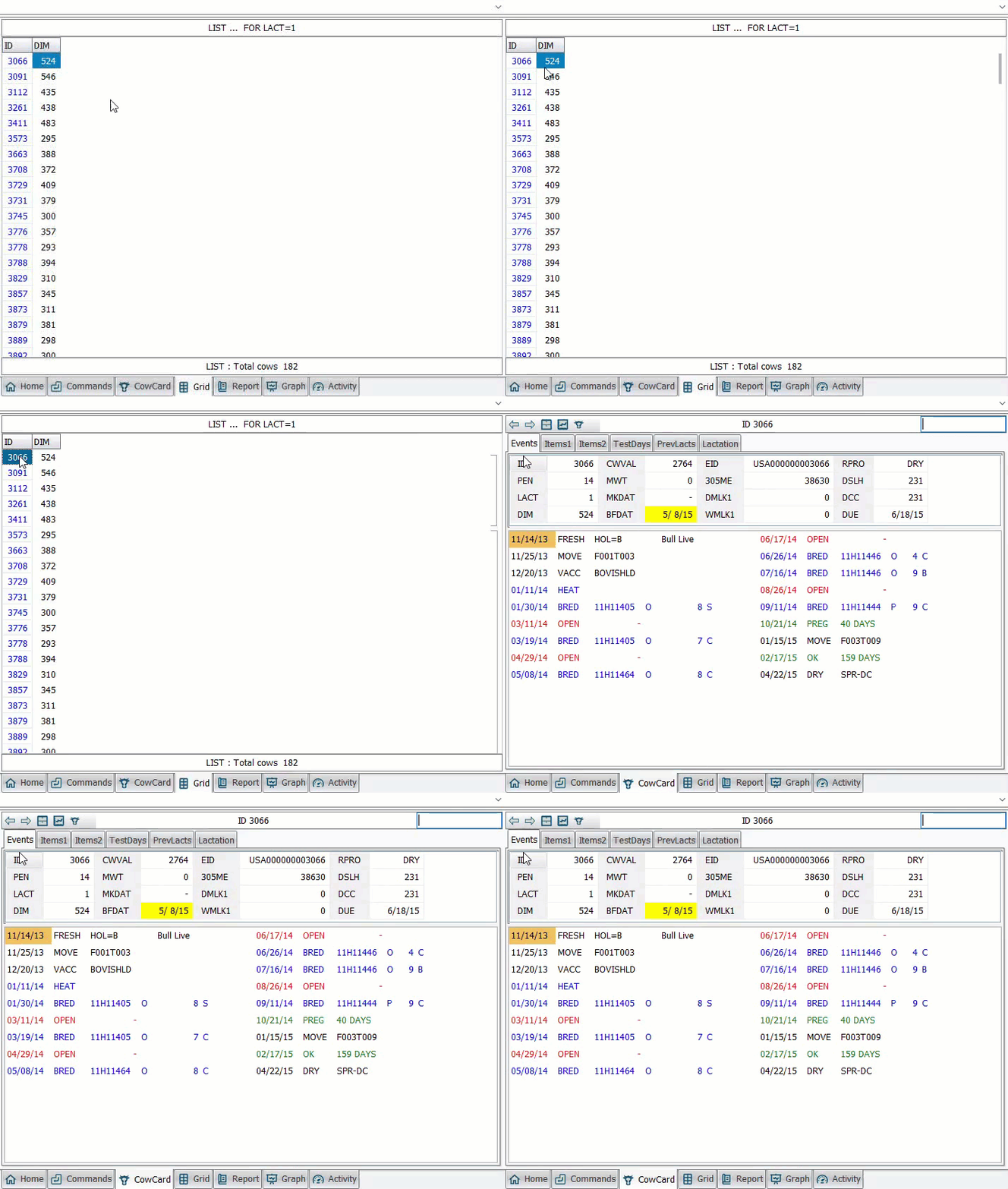
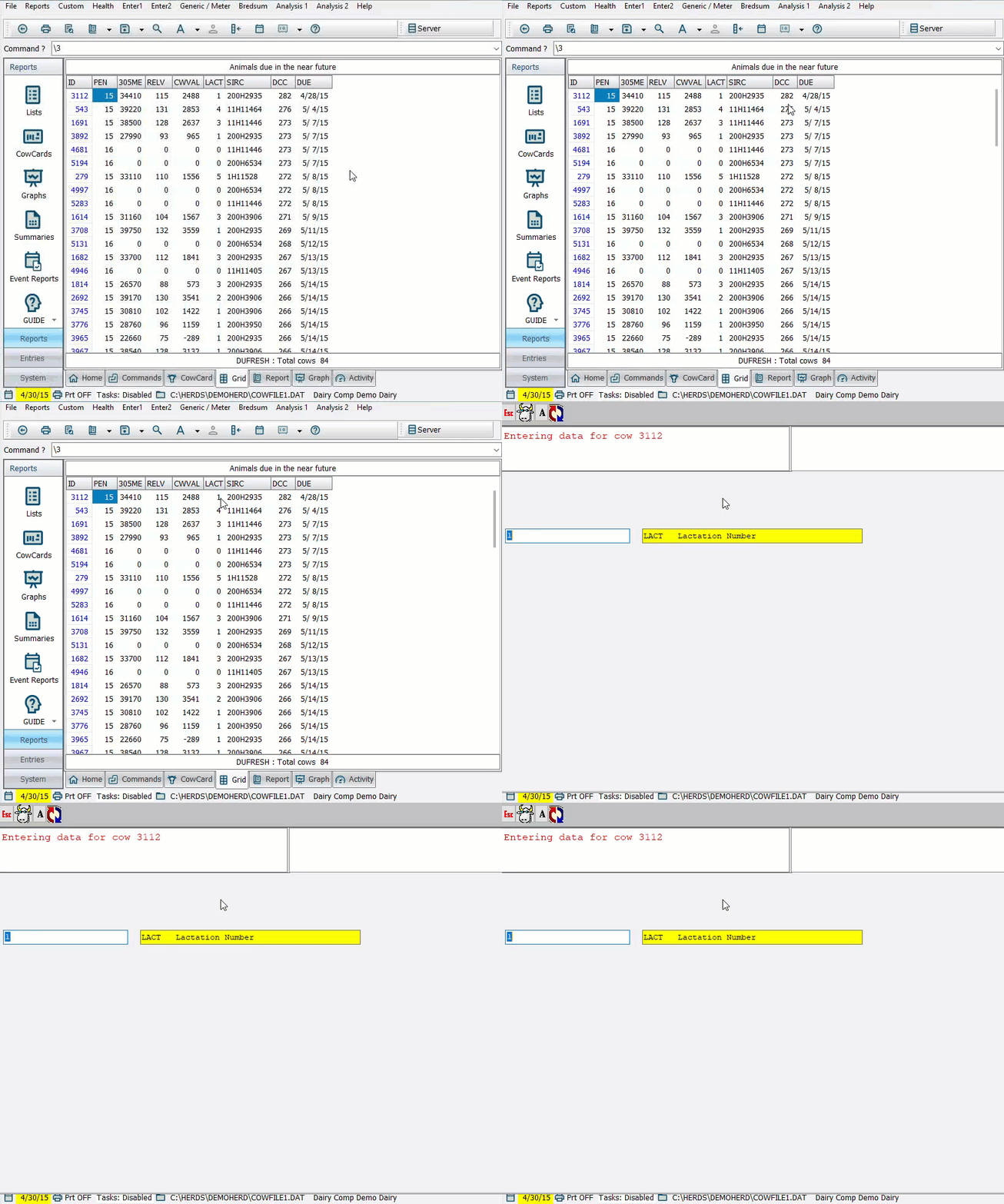
the grid and report pages of dairycomp make significant use of browse mode—a display style that presents the page contents in a scrollable, standardized format on pages that use browse mode, you can use the arrow keys or the pgup , pgdn , home , and end keys to move up, down, left, or right, respectively pressing ctrl+end goes to the end of the page, while ctrl+home brings you to the beginning pressing the esc key while a command is in progress aborts the command and returns you to browse mode if you press the esc key again, you return to a command prompt or menu when generating a report with the list command and printing is enabled, the report prints using the configured printer settings and then displays the grid and report pages in browse mode print in browse mode pressing the p key on a page in browse mode prints the contents of the current page if printing is disabled (from the setup command or toggling the prt option in the status line to prt off ), list commands behave as show commands and immediately display the grid page you can print the contents of most pages by clicking the print button on the toolbar or selecting print from the file menu export contents in browse mode pressing the f key on a page in browse mode exports the page contents to a generic file format using this method, you must also include the file format suffix (such as txt ) when naming the export you can also export the contents to a generic file format by selecting the save report button in the toolbar note if you save the file without the format suffix, the file generates in an unusable file format to fix this issue, rename the file (press the f2 key with the file selected) with the desired suffix the file then converts to that format if you export a second file with the f key or the save report button, selecting the original file (as if you were replacing it) causes three options to display in dairycomp overwrite append to the end enter new file name to export the file in a specific format, click the drop down arrow next to the save report button and click an option perform a text search in browse mode to search for a text string or animal id on a browse mode page, press the f9 key on the grid page, you can also press ctrl+f as you would in other windows applications on the report page, pressing the equal sign key (=) also opens the find text window jump to the cowcard as illustrated in the video below, clicking an animal id or pressing the f2 key with the animal's data row selected on the grid or report pages immediately displays the cowcard for that animal to quickly return to the grid page, press the escape key from the cowcard if you entered or changed any data in the cowcard, the report automatically regenerates to reflect those changes edit items from browse mode double clicking a stored item displayed on the grid or report pages opens the enter window, as demonstrated in the video below pressing the enter key with a new value changes the item on both the report and the animal's cowcard sort a report in browse mode when you view a report in browse mode, you can click a column header to sort the entire report by that column if you click the column header again, the report is sorted in the reverse order not all reports support sorting—this feature works best with list or show commands but may not work at all for monitor or bredsum commands when clicks don't work once you exit a report and return to the command line, the report is no longer "active", and certain clicking options (like entering or sorting) will no longer work to quickly regenerate the report, you can retrieve your last command by clicking the command line and pressing the f4 key or the up and down arrow keys on your keyboard