Alter12: FRESH Event Items
5 min
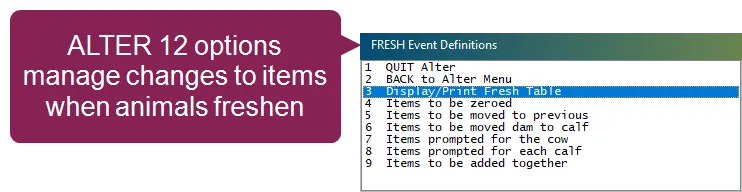
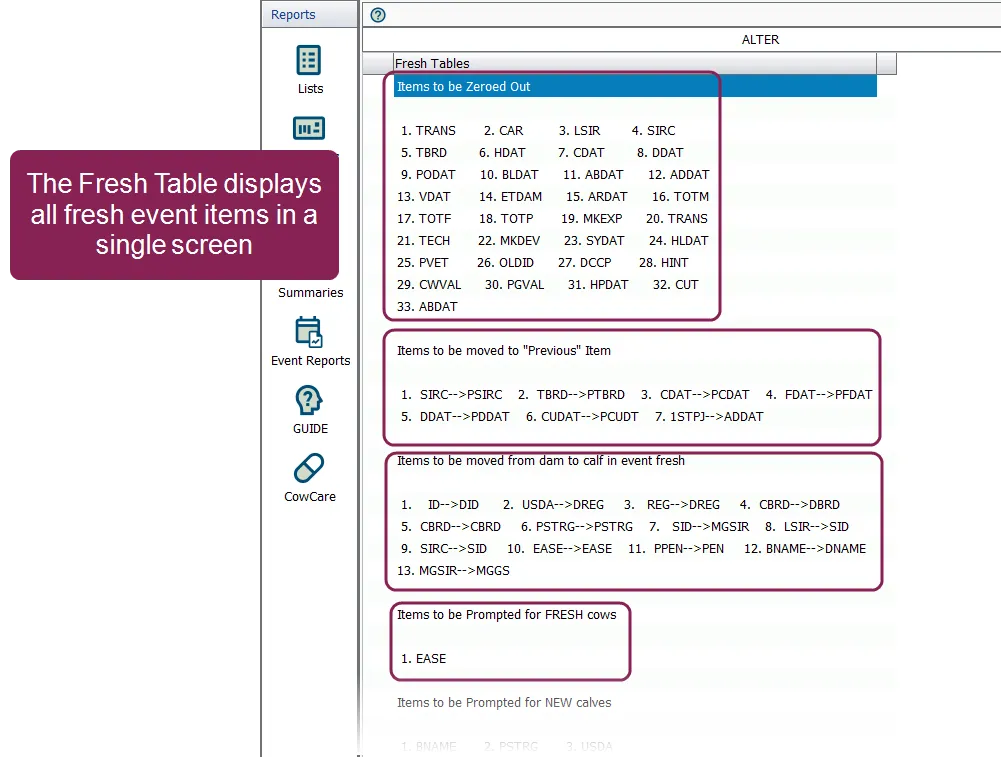
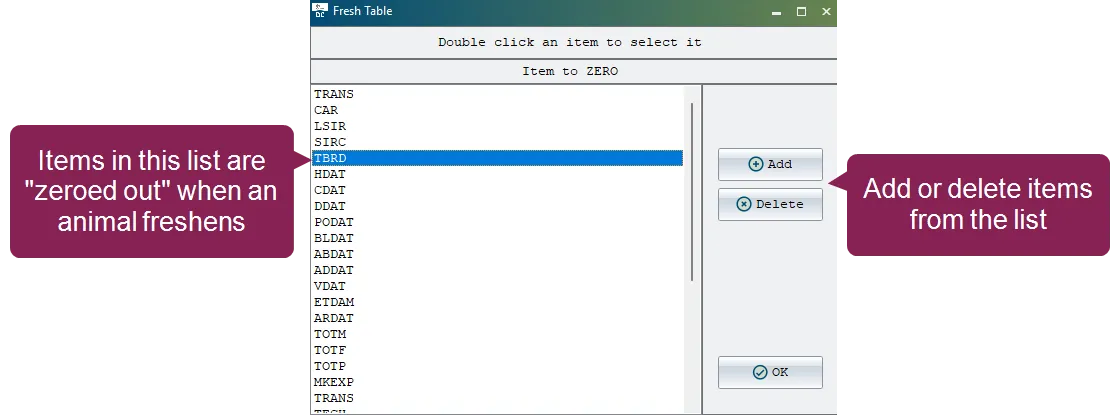
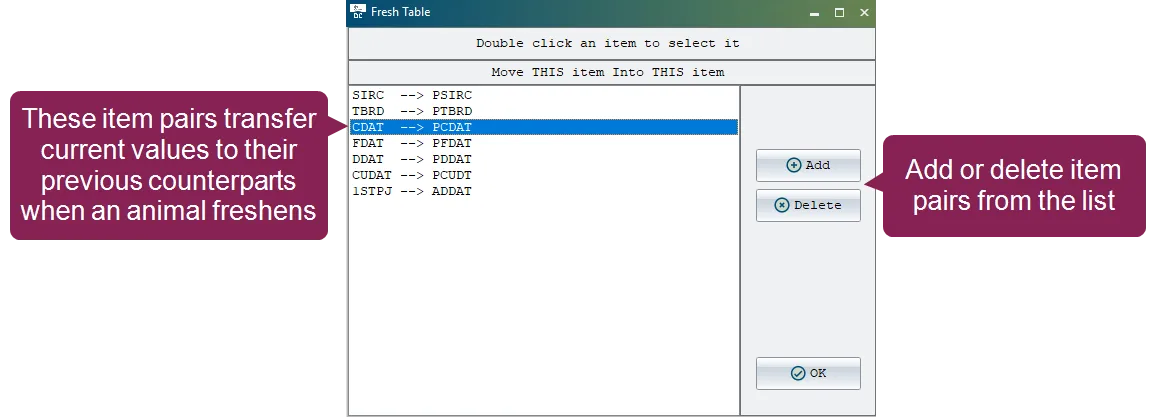
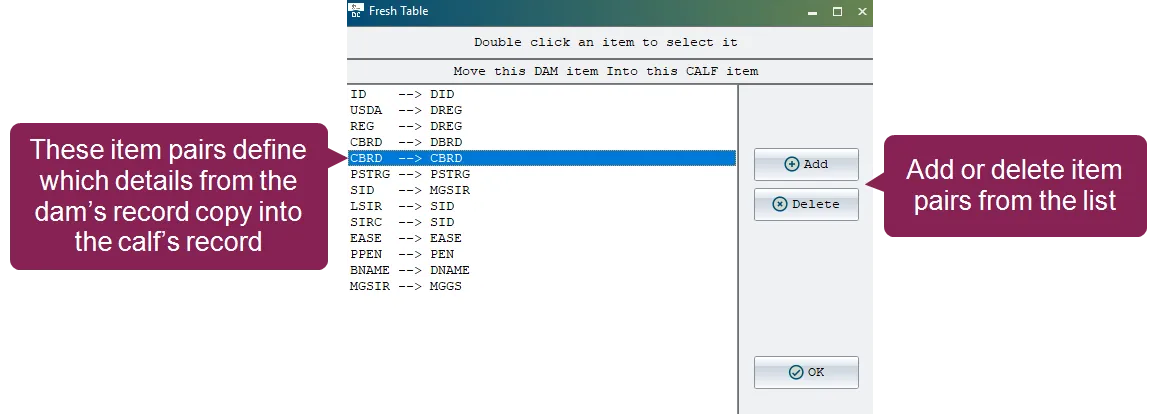
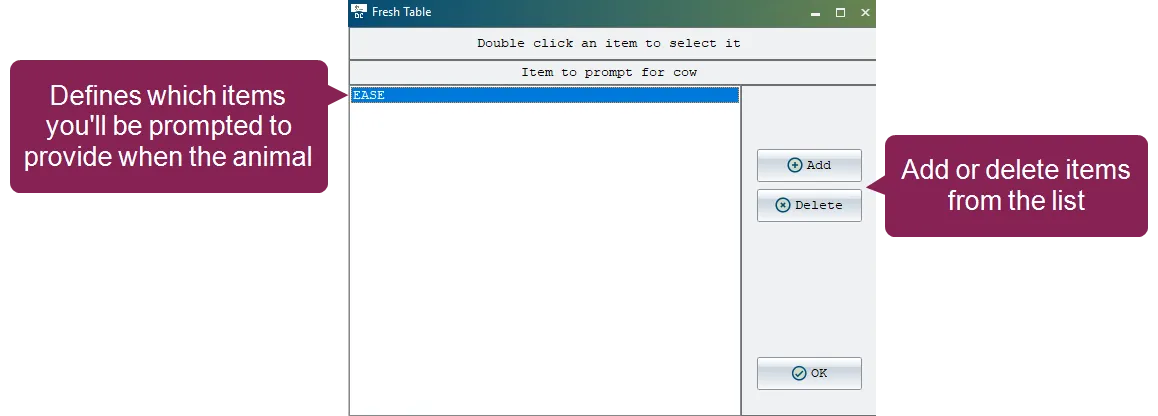
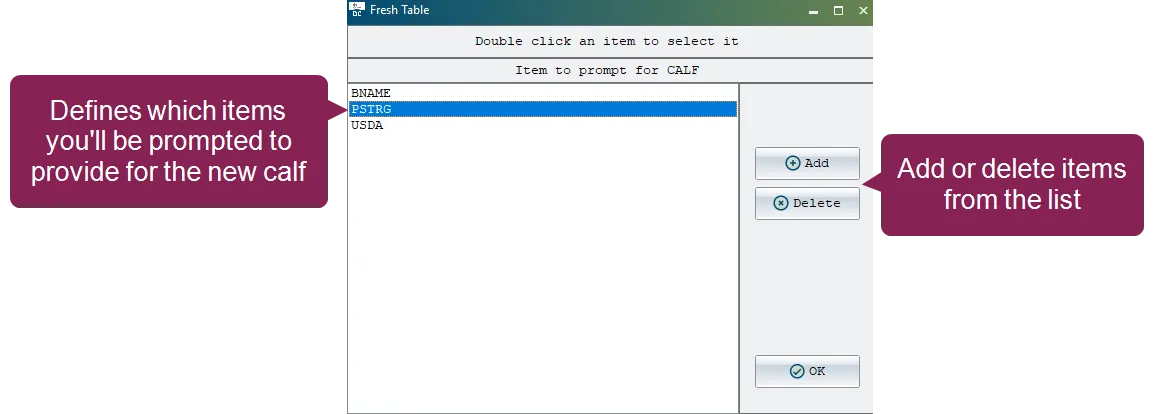
the alter12 fresh event items allows you to manage the dairycomp items that are affected when an animal freshens (i e , starts a new lactation) the fresh event is one of the most important events in dairycomp because it resets the animal's record, updates key items, and prompts for new information alter12 fresh event items allows you to customize these actions to fit your dairy's management practices fresh event items are arranged in six separate tables each table controls a specific aspect of what happens during the fresh event—such as zeroing out old data, moving values to previous fields, transferring dam details to the calf, prompting for new entries, or updating lifetime totals note dairycomp automatically handles the most critical updates the fresh date (fdat) is set to the event date and the lactation (lact) is increased by one you do not need to add these to the manual tables to open the fresh event definitions menu, enter alter in the command line, then select \[12] fresh event items from the menu alternatively, you can enter alter\12 in the command line the menu lets you view all of the items currently configured to be affected by a fresh event as well as options for changing them display or print the fresh table the display/print fresh table option lets you view all six fresh event tables in a single screen this consolidated view is helpful for reviewing your current configuration before making changes from here, you can confirm which items are set to zero, moved to previous, transferred to the calf, prompted for entry, or added together if needed, you can also print the table for reference, which is useful when planning updates or troubleshooting issues items to be zeroed the items to be zeroed option lists all items that should reset to zero when an animal freshens this ensures that data from the previous lactation, such as production totals or breeding counts, does not carry over into the new lactation note only stored items need to be zeroed calculated items and test day data are managed by the system and do not need to be included in this table when you open this option, you’ll see a list of items currently set to be zeroed when animals freshen to add a new item, click add to open the selection window, choose the item you want, and click ok the item will then appear in the main list to remove an item, select it in the main list, click delete , and confirm the deletion when prompted to replace an item with a different one, double click it in the main list to open the selection window and choose a different item; the new item will replace the original in the list when you're finished making changes, click ok to save items to be moved to previous the items to be moved to previous option defines which current values should be transferred to their “previous” counterparts when an animal freshens this preserves historical data for reporting while clearing current fields for new lactation data note items being transferred must be the same data type (e g , date to date) for alpha numeric items, both items must also have the same field length when you open this option, you’ll see item pairs configured to preserve history for example, fdat to pfdat indicates that the current fresh date will be moved to the previous fresh date item, allowing the system to save the old date before it records the new one to add a new pair, click add first, select the item you want to move, then click ok next, select the item that will receive the value and click ok again the pair will appear in the main list to remove a pair, select it in the list, click delete , and confirm the deletion when prompted to change an existing pair, double click it when you do, repeat the selection process choose the new source item, then the new destination item, and click ok when you're finished making changes, click ok to save items to be moved dam to calf the items to be moved dam to calf option defines which details from the dam’s record should be copied into the calf’s record during the fresh event this ensures that parentage and registration information is transferred automatically, reducing manual entry and maintaining accurate pedigree data note items being transferred must be the same data type (e g , date to date) for alpha numeric items, both items must also have the same field length when you open this option, you’ll see how data moves from the mother to the offspring for example, id to did indicates that the animal's identification number will be moved to the calf’s dam id item, automatically linking the calf to its mother important if multiple dam items are transferred to the same calf item (for example, usda and reg both going to dreg), the order in the list matters dairycomp will process them in order, but will not overwrite a value with a zero or a blank this allows 'reg' to take precedence over 'usda' only if a registration number exists to add a new pair, click add first, select the dam item you want to move, then click ok next, select the calf item that will receive the value and click ok again the pair will appear in the main list to remove a pair, select it in the list, click delete , and confirm the deletion when prompted to change an existing pair, double click it when you do, repeat the selection process choose the new dam item, then the new calf item, and click ok when you're finished making changes, click ok to save items prompted for the cow the items prompted for the cow option defines which details you will be asked to enter for the animal during the fresh event these prompts ensure critical data is captured immediately for example, including ease (calving ease) will cause dairycomp to ask you for a score (1–5) for the birth, while pen (pen number) prompts you to record which group the animal is moving into to add a new item, click add to open the selection window, choose the item you want, and click ok the item will then appear in the main list to remove an item, select it in the list, click delete , and confirm the deletion when prompted to change an existing item, double click it when you do, select a different item from the list and click ok ; the new item will replace the original when you're finished making changes, click ok to save items prompted for the calf the items prompted for the calf option defines which details you will be asked to enter for the calf during the fresh event these prompts help you start the calf's record accurately for example, prompting for bname (barn name) or etag (electronic id) allows you to identify the newborn calf at the exact moment the birth is recorded to add a new item, click add to open the selection window, choose the item you want, and click ok the item will then appear in the main list to remove an item, select it in the list, click delete , and confirm the deletion when prompted to change an item in the list, double click it then select a different item from the list and click ok ; the new item will replace the original when you're finished making changes, click ok to save items to be added together the items to be added together option defines pairs of items whose values should be combined during the fresh event this is typically used for cumulative totals, such as adding the number of treatments for the current lactation to a lifetime total note you cannot add a value to a computed item if you attempt to select one, dairycomp displays a warning to add a new pair, click add first, select the item whose value will be added, then click ok next, select the item that will receive the combined total and click ok again the pair will appear in the main list to remove a pair, select it in the list, click delete , and confirm the deletion when prompted to change an existing pair, double click it when you do, repeat the selection process choose the new first item, then the new second item, and click ok when you're finished making changes, click ok to save