Assign Technician Teams to Events
2 min
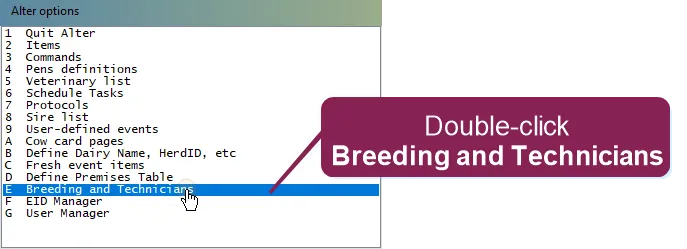
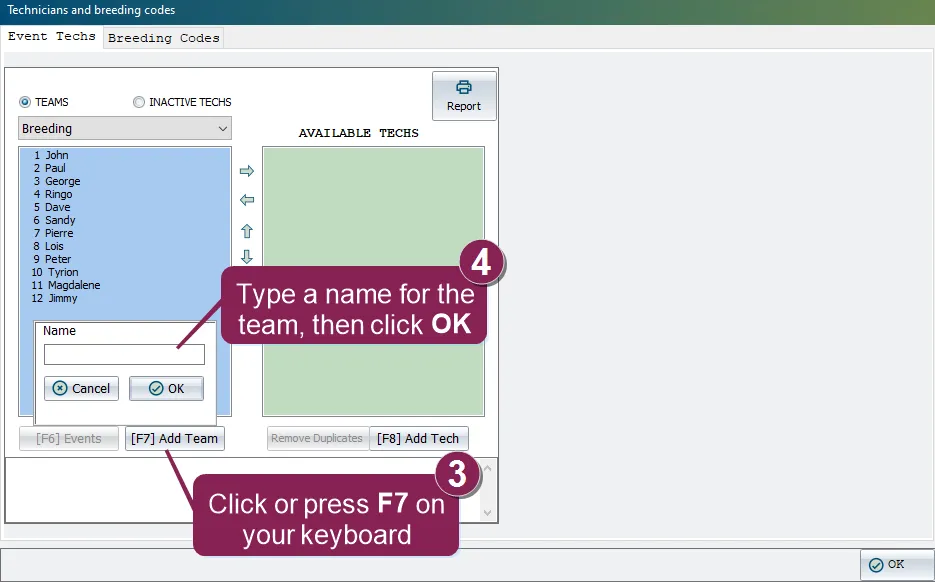
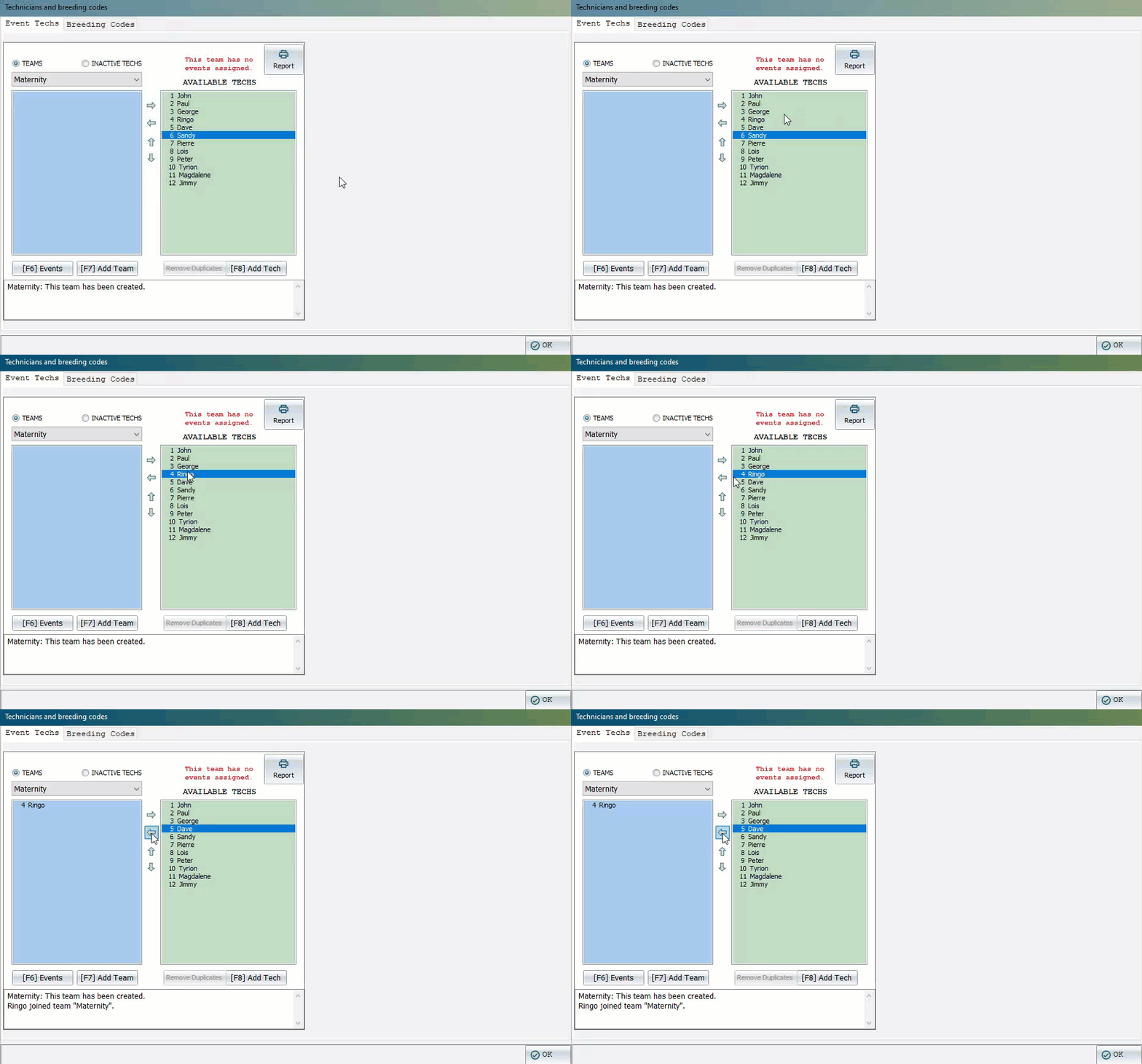
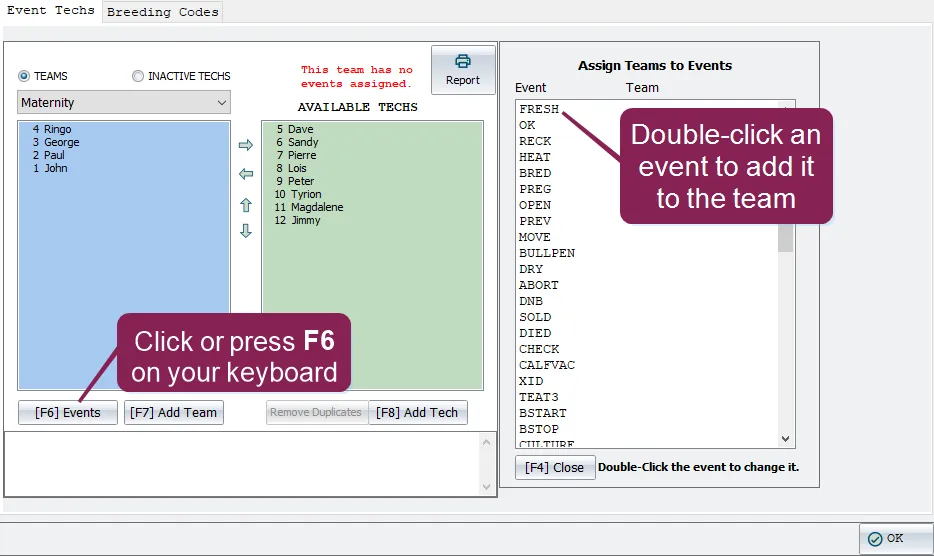
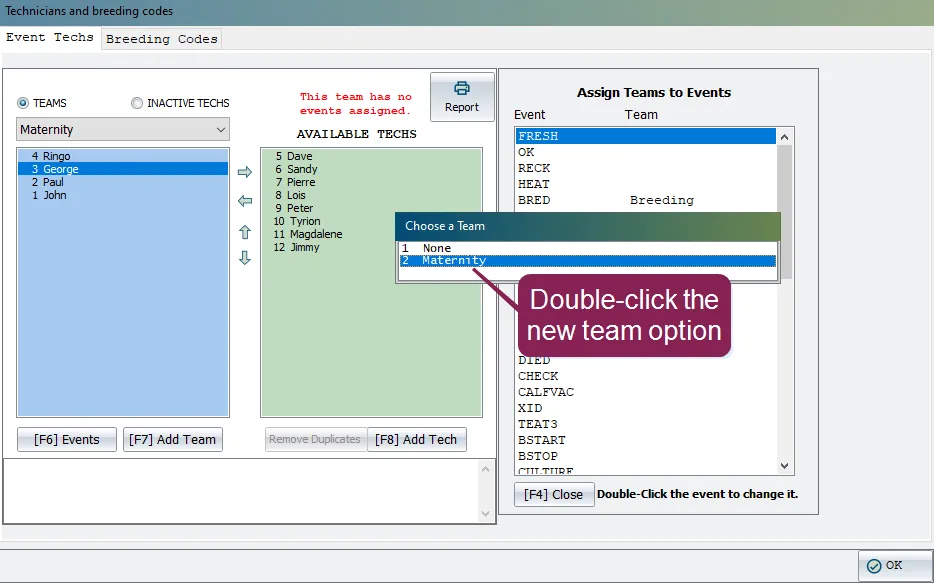
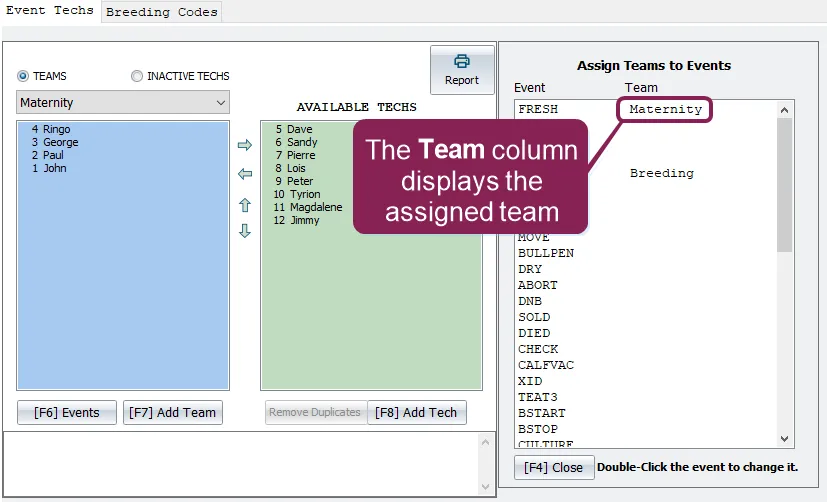
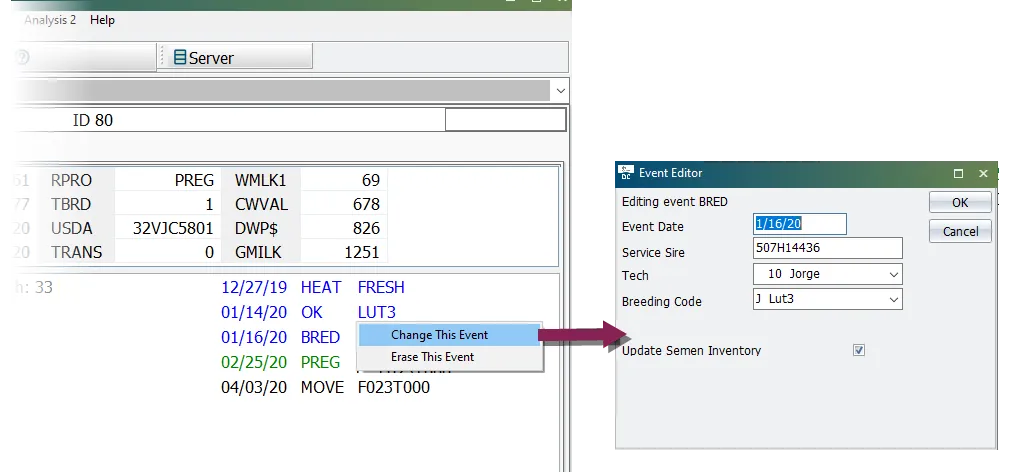
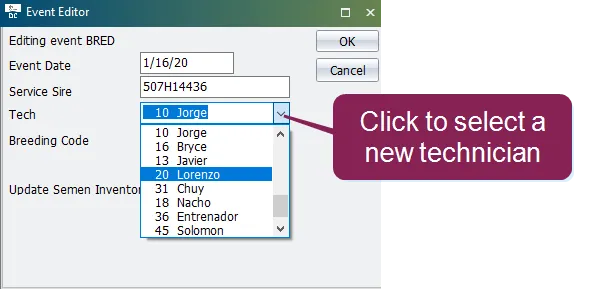
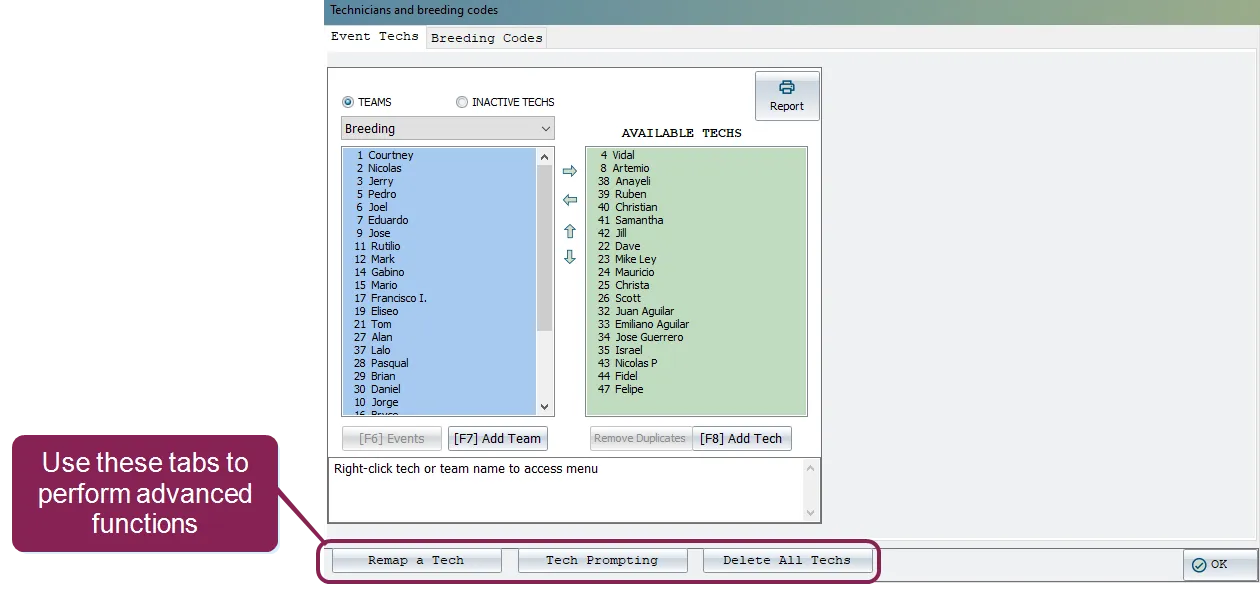
\<font color="#67854e"> question \</font> how do i assign technicians to specific events in dairycomp? \<font color="#67854e"> answer \</font> to ensure specific technicians (or groups of technicians) are assigned to specific events, you'll need to first create a team for example, you could make a maternity team to enter all fresh events into dairycomp follow the steps below when assigning technician teams to events create a team and assign events enter alter in the command line to open the alter window double‑click the breeding and technicians option to open the technicians and breeding codes window click \[f7] add team or press f7 on your keyboard the window updates to display the name field in the name field, type the name of the new team click ok to create the team in dairycomp the window now displays your new team in the drop‑down box and all of the assigned technicians move to the available techs box to assign a technician to the team, select the technician's name and then click the left arrow button the short animation below demonstrates this step click \[f6] events or press f6 on your keyboard in the assign teams to events pane, double click an event to assign it to the team double click the new team option in the choose a team box repeat steps 7 and 8 as needed to add more events to the team the team column in the assign teams to events pane updates to indicate which team the event is assigned to change technician of an event when you assign certain events to an animal (for example, a bred event), you're given the option to assign a particular technician to the event follow these steps to change the event technician directly from an animal's cowcard on the cowcard, right click on the applicable event and select change event to open the event editor click in the tech field to select a different technician from the drop down list and then click ok the newly selected technician will be saved to the event advanced technician options dairycomp allows you to perform advanced functions within the technicians and breeding codes window to access these options, enter alter\m at the command line, and then select the breeding and technicians option as usual when the window opens, it will have three additional tabs for the advanced functionality click on the applicable tab to perform one of the following functions \<font color="#67854e"> remap a tech \</font> this function allows you to remap one technician number to another technician number this changes the technician number on all related events for a date range you specify \<font color="#67854e"> tech prompting \</font> enable this feature to have dairycomp prompt you for the name of a technician when entering an event \<font color="#67854e"> delete all techs \</font> this function deletes all of the technicians configured for dairycomp \<font color="#f97316"> important \</font> be careful using the delete all techs function; it cannot be undone!