Print Reports and Change Layout
There are three ways to print a report that is currently being displayed in the browser:
- Press the P key on your keyboard.
- Click the printer icon on the toolbar.
- Select Print from the File menu.
NOTE: Before you continue with the procedure below, close DairyComp. If the printer has already been installed (per step 1), close and reopen the program.
Follow the steps below to activate and test a newly installed printer:
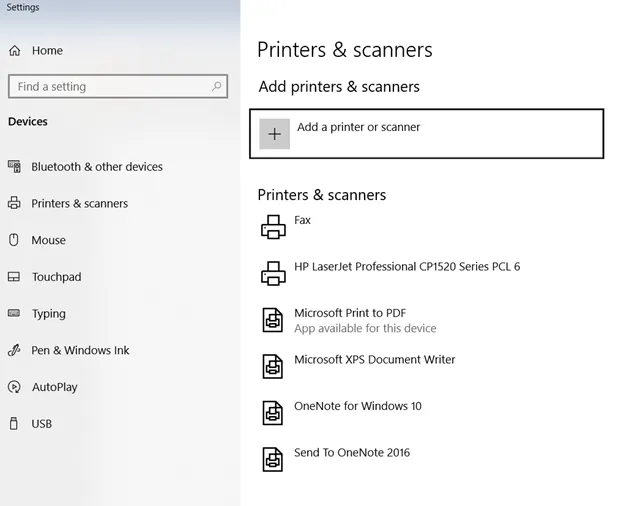
- Confirm that the printer is installed correctly by checking your Printers and scanners settings in Windows (see example below). Make sure the printer is installed correctly, according to the instructions that came with the printer. Run the CD or download the printer drivers if necessary.
- Once the printer is installed, open DairyComp and type SETUP in the command line to open the SETUP window.
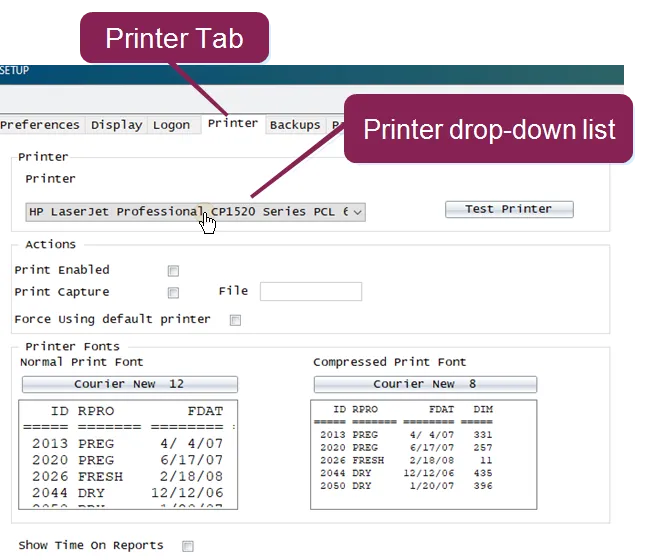
- Select the Printer tab in the SETUP window, and select the new printer in the drop‑down LIST under Printer.
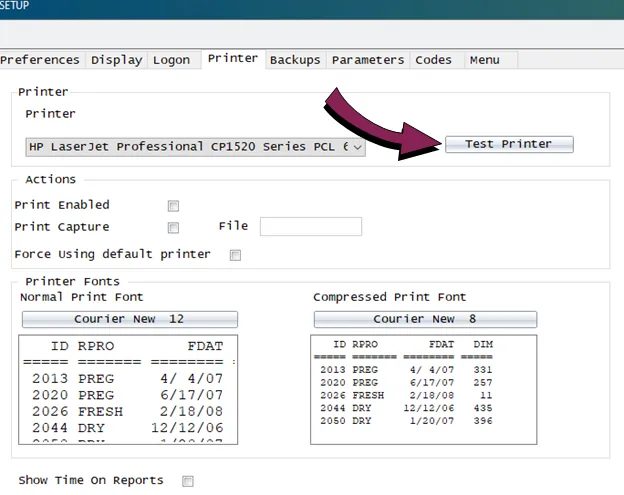
- After you select the new printer, you can test it by clicking the Test Printer button.
- Recommended: Restart DairyComp after making changes to the Printer SETUP options.
If printing is enabled through the SETUP command or by toggling the Prt option in the status line to Prt ON, reports created by the LIST command automatically print when they are generated. Reports created with the SHOW command display on the Grid and Report pages.
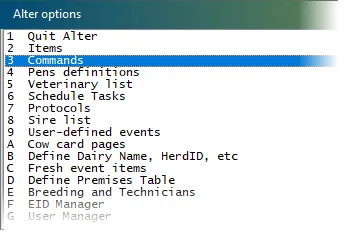
- In the command line, type ALTER. Then, press the Enter key to open the ALTER options window.
- Select the Commands option to open the ALTER3 : Command Abbreviations window.
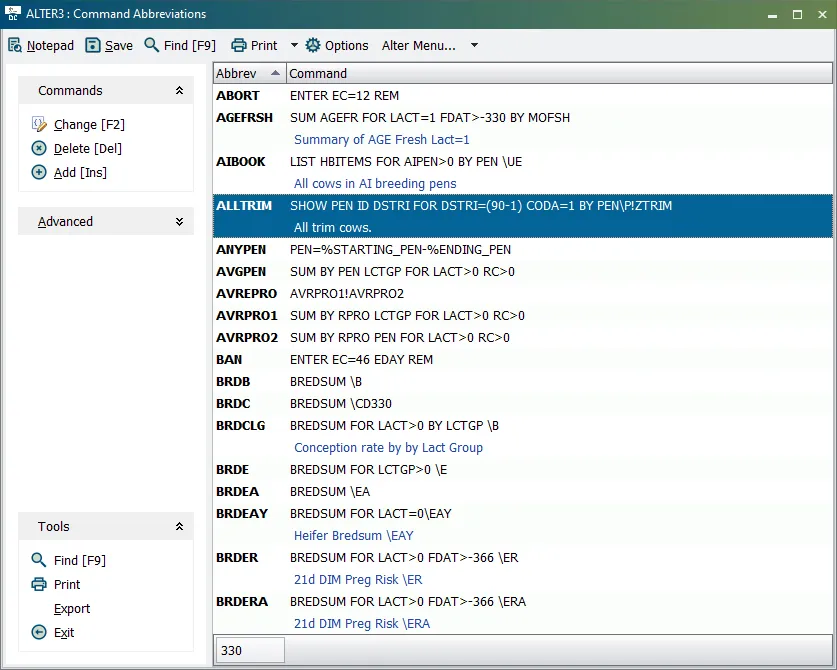
- Double-click a command using the SHOW action verb. DairyComp displays a pop-up window for the command.
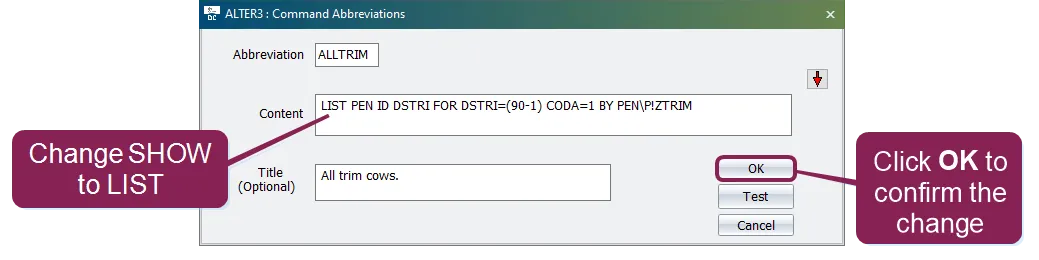
- In the Content field, replace SHOW with LIST.
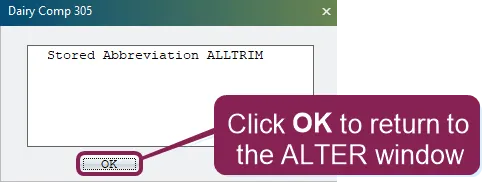
- Click OK to confirm the replacement. The Stored Abbreviation window confirms the change was successful.
- Click OK to return to the ALTER3 : Command Abbreviations window.
You can also change the way reports display on screen and in print using various switches and syntax. See the topics below to learn more:
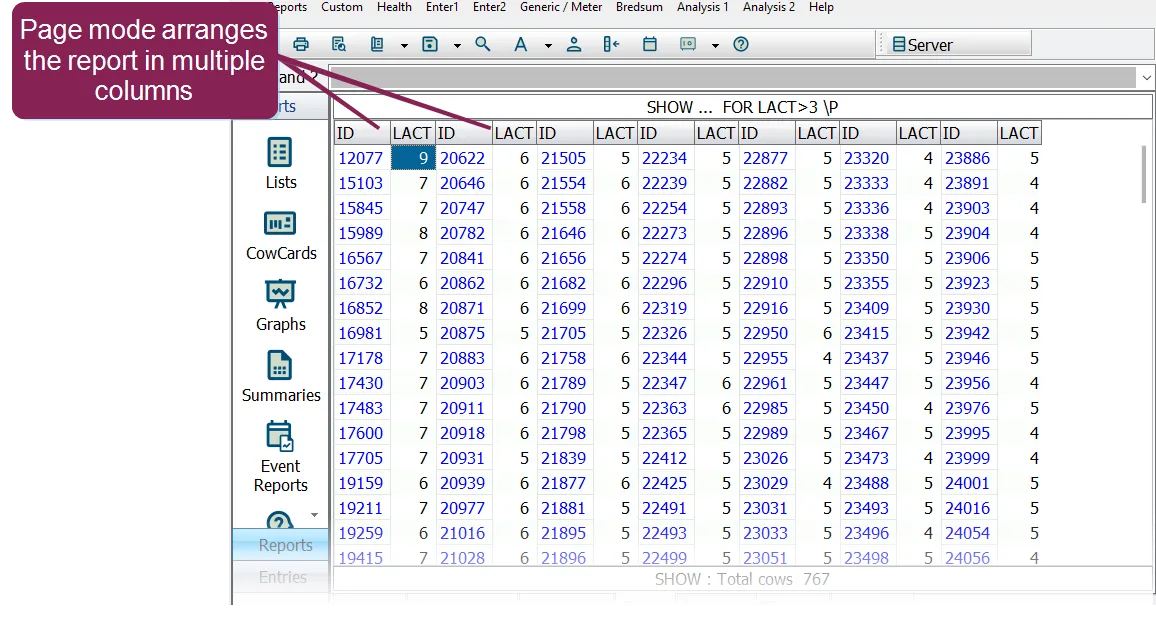
To have your reports display in multiple columns, add the "page mode" \P switch to a SHOW or LIST command. For example, SHOW ID LACT FOR LACT >3 \P creates a report that looks like this.
You can also control the number of columns by adding the desired number of columns to the \P switch, as in SHOW ID LACT FOR LACT >3 \P3.
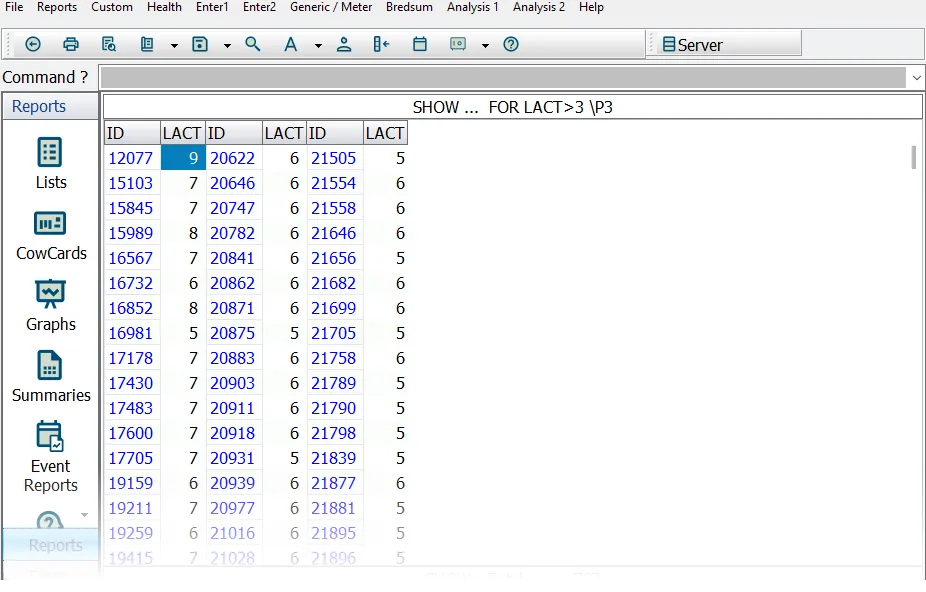
DairyComp automatically decides how many columns can be printed based on the length of the report and whether or not the report is compressed (using the \C switch; see How do I print a compressed report?How do I print a compressed report? to learn more).
You can change the way LIST and SHOW reports display by specifying field widths for items. To do so, enter the item code in the command line followed by a colon (:) and the amount of spaces you want the data displayed within.
Let's look at an example:
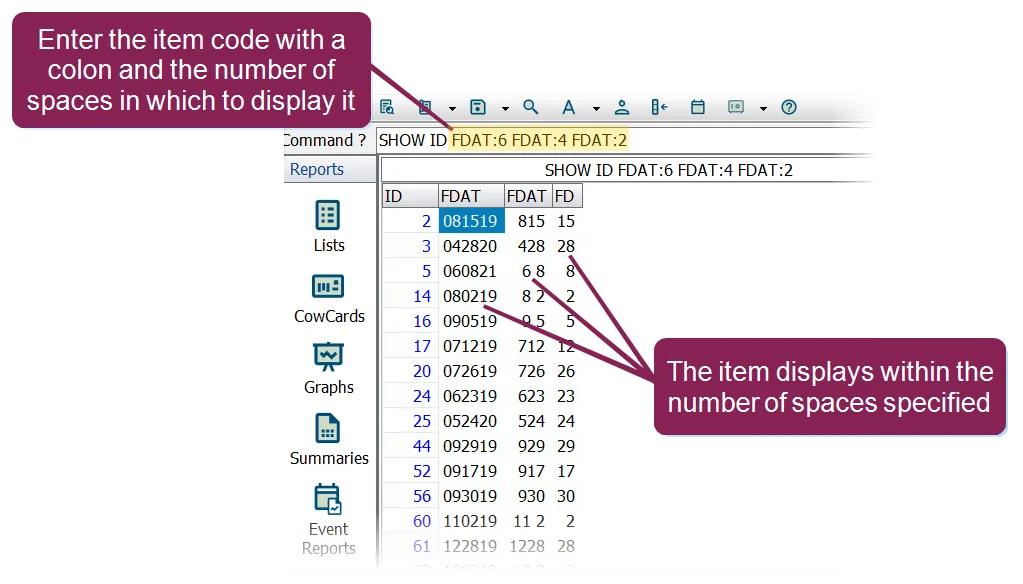
SHOW ID FDAT:6 FDAT:4 FDAT:2
This command returns the fresh date (FDAT) of animals in three columns, all with different widths (6, 4, and 2).
Sometimes, you'll want to shorten the length of a field to save space in your report. This can be helpful with the DIM (days in milk) item, which normally displays in five (5) spaces but almost never requires that much space. In this case, you can shorten the DIM item in your reports to three spaces:
SHOWIDDIM :3
When you specify a field width for an item, then any results that would normally need more spaces than the number of spaces specified will show as an asterisk (*). For example, if you enter the following command, you're telling the system to display DIM in both three and two spaces:
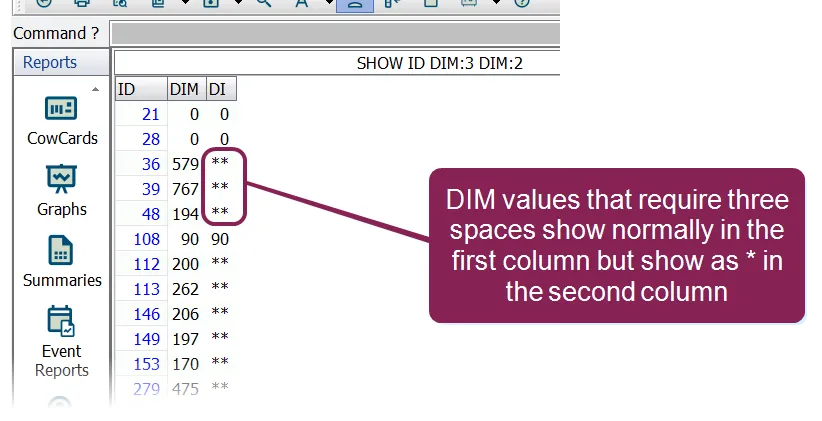
SHOW ID DIM:3 DIM:2
In this case, you can see that DIM values that require three spaces (e.g., 579, 767) show properly in the first column, but show as an asterisk in the second column.
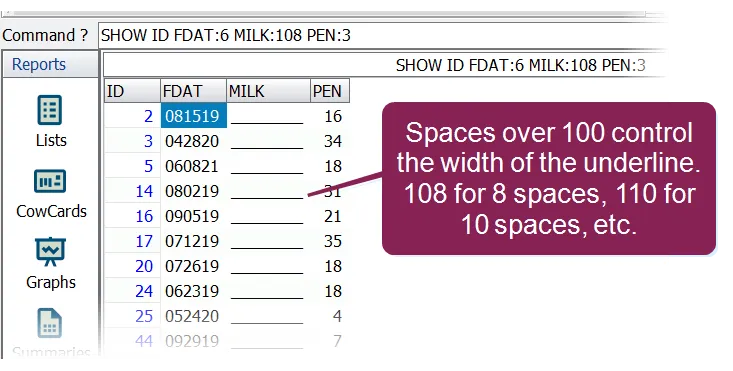
You can also add underlines to results (as a visual separator, for instance) by specifying a width greater than 100. Any spaces you specify over 100 control the width of the underline. Therefore, if you enter the following command:
SHOW ID FDAT:6 MILK:108 PEN:3
You're telling the system to display the MILK item as an underline, and telling it to make the underline eight (8) spaces wide.