Activate Ever.Ag Integration
2 min
Follow these steps to activate the integration and view data on your BacteriaBacteria and Milk QualityMilk Quality widgets:
- Log into your Ever.Ag account, select Integrations, and click the toggle to activate the VAS PULSE Platform integration for your herd.
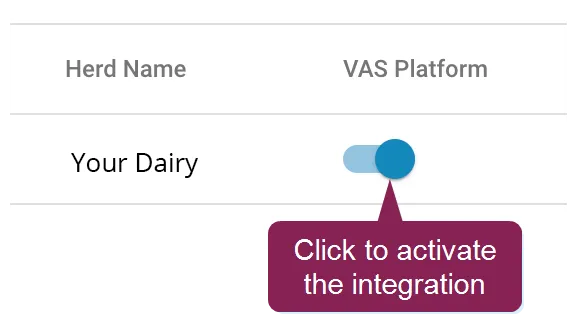
IMPORTANT: You must have administrator access in your creamery app to be able to connect the integration. Contact your creamery if you need to adjust your access level.
- In PULSE, navigate to Partners > Integrations Gallery > Ever.Ag creamery.
- Click See Details or See Requirements on the Ever.Ag creamery integration card.
- Follow the Connection Instructions on the right side of the page to establish the connection:
- Click Add New Alias, then complete the following fields:
- Alias: Enter your Dairy Name. If you have multiple dairies, we recommend you use different names for each alias.
- Producer Code: Copy or enter your code from your Ever.Ag creamery account. Your Producer Code is included in the weekly summary email from your creamery.
- Click Save.
- Click the Connection Status toggle and verify the status switches to Active.
- If necessary, click Edit Integration to make any adjustments or edits and save your changes.
IMPORTANT: If your integration does not automatically connect, contact your Ever.Ag representative to connect the integration from their system.
Once activated, the widgets are automatically added to your Dairy Dashboard.