Find an Animal or Assign RFID with a Scanner
1 min
Before you scan any animals, use the Refresh HerdRefresh Herd option on the More menu to pull the latest data down to the mobile app. Then, begin scanning from any tab to:
Before you scan any animals, use the Refresh HerdRefresh Herd option on the More menu to pull the latest data down to the mobile app. Then, begin scanning from any tab to:
If the scanned animal's RFID is recognized and found, the mobile app displays its CowCard. You can then choose to add an eventadd an event, mark an animal done on a worklistworklist, or complete other required tasks.
IMPORTANT: Only users who are assigned to a Role with Herd Write permissions can use this feature.If your account only has Herd Read permissions, you will not be able to use this feature.
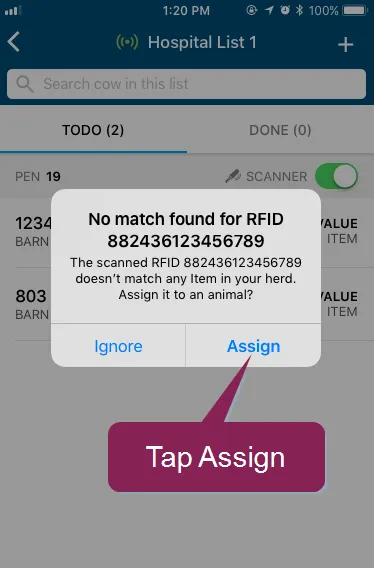
If the scanned animal's RFID is not recognized, you have the option to assign it to an animal in the herd:
Tap Assign.
Look up the animal to which you will assign the RFID tag. You can find an animal by its ID, BNAME, CNTL, VISID, REG, or EID, though not all of these items may be available in your dairy.
Select which item to assign to the animal. For instance, if an animal's electronic ID (EID is replaced and no longer matches its EID in PULSE, you can assign the new value as its EID.
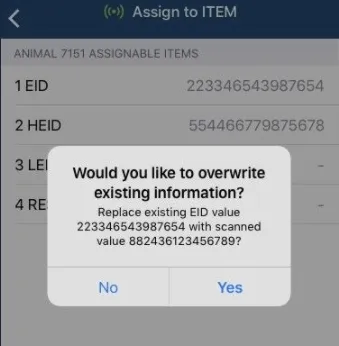
Tap Yes to confirm the assignment.
If you encounter an error, your dairy is not configured to assign items while scanning.
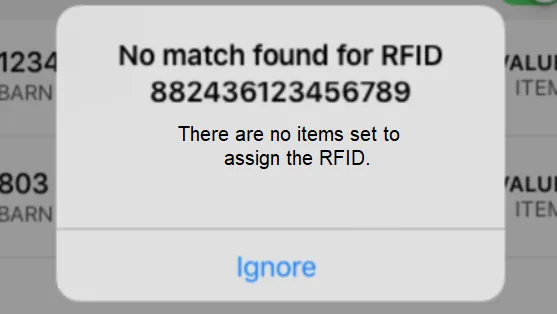
Log into the web version of PULSE and adjust the RFID ScanningRFID Scanning settings.
EUSA | EULA | Privacy Policy | Trademarks | Contact Us
Copyright © VAS 2026