---
title: Pens
slug: help/en-us/pulse/pens
docTags:
createdAt: 2026-02-09T13:08:54.489Z
---
::::ExpandableHeading
### Required Setup
:::hint{type="warning"}
**IMPORTANT: **When using this feature, certain column headers and data will only display if your dairy has FeedComp or FeedWatch integrated with PULSE.
:::
::::
:::ExpandableHeading
### Required Permissions
Only users who are assigned a role with Herd Write permissions can edit data or customize settings.
See the topics below to learn more:
- [Know Your VAS PULSE Version](docId:5i7xV63wGmRxMsoTYJaaA)
- [Edit Dairy User Permissions](docId\:gW6ZX7tfC4IhSbrtOzc_V)
- [Manage Dairy Roles](docId:9YjUkdzFab0KkO1HW0Mxj)
:::
You can manage PULSE pens and zones on the **Pens** page. You can find this feature under the [Dairy menu](docId\:ezFEjZDkBcfov-b69AUPR).
At the top left of the page, click the **Pens** tab to view all available pens in PULSE. Or, click the **Zones** tab to view all available zones.
:::::::::ExpandableHeading{customAnchorSlug="pens"}
## Pens
::::VerticalSplit{layout="middle"}
:::VerticalSplitItem
:::
:::VerticalSplitItem
:::
::::
::Image[]{src="https://platform-docs.vas.com/en-us/Content/Resources/Images/Platform/pens/pens-details.png" size="38" width="1906" height="855" darkWidth="1906" darkHeight="855" position="flex-start" showCaption="false"}
Expand the sections below to learn more:
::::::::WorkflowBlock
::::WorkflowBlockItem
:::ExpandableHeading{customAnchorSlug="searchpen"}
## Search and Filter the Pens List
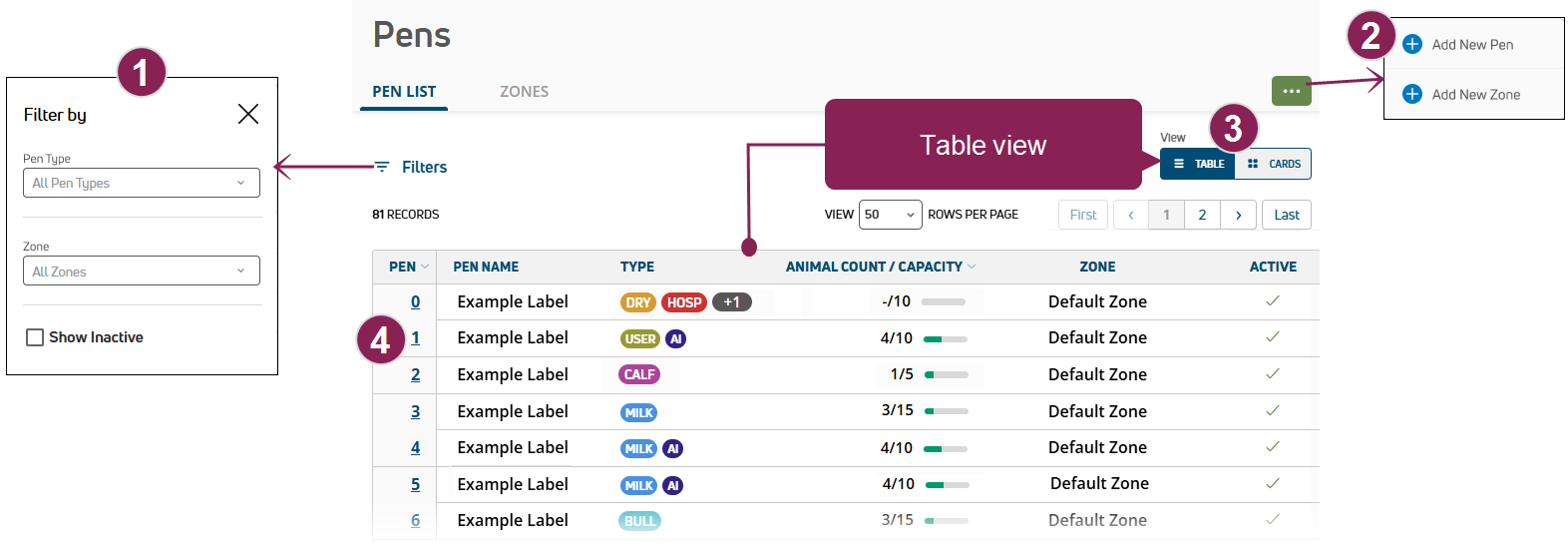
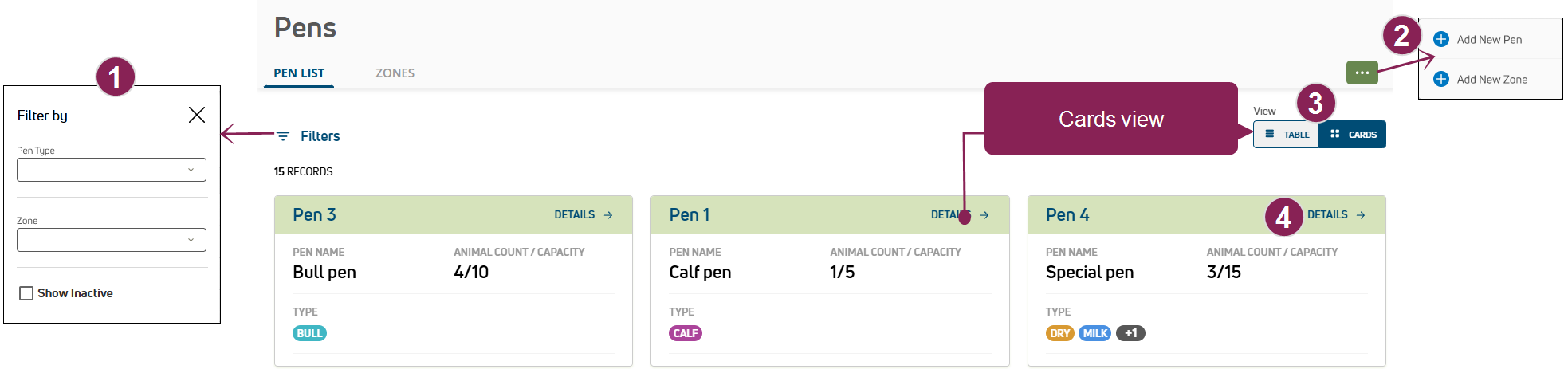
Options to search and filter the pens list are available at the top of the page. Follow the guidelines below when working with the pens list:
- Click **Filters** at the top left of the page to limit the data that is displayed. The **Filters** side panel opens.
- Select Pen** Types** to limit the list to a specific type of pen. Multiple types can be selected.
- Select a **Zone** to limit the list to a specific zone. Multiple zones can be selected.
- Active pens are displayed by default. Check the **Show Inactive** box to view all available pens in the list.
- Click the **Clear Filters** option to clear all of the filters currently applied.
- Select an option in **View Rows Per Page** to change how many records are displayed on the page, and click the navigation options to jump to a specific page.
:::
::::
::::WorkflowBlockItem
:::ExpandableHeading{customAnchorSlug="addpen"}
## Create New Pen
Click the Options button :inlineImage[]{src="https://api.archbee.com/api/optimize/3h8pSJcGUXEi4HGCCYPTA/doCTxDRuGpSxfqAyVbZW2_options-green-small41x29.png" alt caption size="10" width="41" height="29"} at the top right of the page, and then select Add** New Pen**. The **Pen Details** side panel opens. Follow the guidelines below when adding pens:
- Click the **Active Pen** toggle to activate or deactivate the pen.
- In **Pen Number**, you can enter a number up to 999, as long as the number hasn't already been assigned to another pen. If you attempt to enter an existing pen number, the system will display an error message.
- The **Pen Name** entered must be unique and cannot match the name of existing pens.
- Select **Pen Types** to limit the list to a specific type of pen. Multiple types can be selected.
- You must select a Pen Zone from the drop-down list.
:::
::::
:::::WorkflowBlockItem
::::ExpandableHeading{customAnchorSlug="viewtablecards"}
## View Pens in Table or Cards View
You can view pen information in **Table** view or **Cards** view. Follow the guidelines below when viewing the pens list:
- **Pen**: The pen number. To view pen details in **Table** view, click a pen number in the table. Or, click **Details** at the top right of a pen card in **Cards** view. See [View Pen Details](docId:4wsQRyNoX5GAMEMZ1bppI) to learn more.
- **Pen Name:** The pen name set by your dairy.
- **Type**: The pen type. Pen types are color-coded for quick identification.
:::ExpandableHeading{customAnchorSlug="typepen"}
### Click here to learn more about pen types!
When more than 2 pen types are assigned to a pen, a number is displayed that indicates how many additional types are assigned to the pen. Hover over the number to see the additional types assigned. The default colors for pen types are as follows:
AI
BULL
CALF
DRY
HOSP
MILK
USER
:::
- **Animal Count/Capacity**: The current number of animals in the pen and the capacity of the pen. A colored bar shows the status of the pen.
:::ExpandableHeading{customAnchorSlug="capacitypen"}
### Click here to learn more about pen capacity!
You can hover over the status bar to view the animals/pen capacity value as a percentage.
::Image[]{src="https://api.archbee.com/api/optimize/3h8pSJcGUXEi4HGCCYPTA/HISYuiKixE2mDYosUcnbL_pens-list-indicator-hover.png" size="10" isUploading="false" initialPath="../../../Resources/Images/Platform/operations/pens-list-indicator-hover.png" githubPath="Content/Resources/Images/Platform/operations/pens-list-indicator-hover.png" position="flex-start" width="141" height="68" darkWidth="141" darkHeight="68" showCaption="false"}
:inlineImage[]{src="https://api.archbee.com/api/optimize/3h8pSJcGUXEi4HGCCYPTA/ea3J8Xhc6qp9SaHzh71It_pens-list-indicator-green.png" alt caption size="10" width="40" height="10"}: 0-75% full
:inlineImage[]{src="https://api.archbee.com/api/optimize/3h8pSJcGUXEi4HGCCYPTA/sDsIY5D1mYgnuQfD7Kx0w_pens-list-indicator-yellow.png" alt caption size="10" width="40" height="9"}: 76-90% full
:inlineImage[]{src="https://api.archbee.com/api/optimize/3h8pSJcGUXEi4HGCCYPTA/WhaOvq6VIVgVA8RSb0Ndh_pens-list-indicator-red.png" alt caption size="10" width="39" height="11"}: 91-100% full
:inlineImage[]{src="https://api.archbee.com/api/optimize/3h8pSJcGUXEi4HGCCYPTA/B-sZfc7Zj25DQFLxls9Yk_pens-list-indicator-redex.png" alt caption size="10" width="54" height="14"}: Exceeds capacity
:::
- **Zone**: The name of the zone to which the pen is currently assigned.
- **Active**: Icons indicate whether the pen is active :inlineImage[]{src="https://api.archbee.com/api/optimize/3h8pSJcGUXEi4HGCCYPTA/2CnckzUQX8mdHBamg092J_check-green-white-bkgrnd.png" alt caption size="10" width="22" height="17"} or inactive :inlineImage[]{src="https://api.archbee.com/api/optimize/3h8pSJcGUXEi4HGCCYPTA/mkk1mD3k49erxN9u46t8x_x-black-on-white.png" alt caption size="10" width="21" height="19"}. See [Deactivate or Reactivate Pens](docId:4wsQRyNoX5GAMEMZ1bppI) to learn more.
::::
:::::
:::::WorkflowBlockItem
::::ExpandableHeading{customAnchorSlug="viewpen"}
## View Pen Details
You can open the **Pen Details** page from [Table view view](docId:4wsQRyNoX5GAMEMZ1bppI) or [Cards view view](docId:4wsQRyNoX5GAMEMZ1bppI):
1. In **Table** view: Click the ID of a pen to open the **Pen Details** page.
2. In **Cards** view: Click the **Details** link at the top right of a pen card to view the pen's details. The **Pen Details** page opens.
Follow the guidelines below when viewing pen details:
- **Pen Details**: Details about the pen are displayed at the top of the page.
:::ExpandableHeading
### Click here to learn more about pen details!
- **Pen Number**: The pen number set by your dairy.
- **Pen Name:** The pen name set by your dairy.
- **Type**: The pen type. Pen types are color-coded for quick identification. [Click here to learn more about pen types!](docId:4wsQRyNoX5GAMEMZ1bppI)
- **Zone**: The name of the zone to which the pen is currently assigned. Click the Zone name to view its [details](docId:4wsQRyNoX5GAMEMZ1bppI).
- **Active/Inactive:** Icons indicate whether the pen is active :inlineImage[]{src="https://api.archbee.com/api/optimize/3h8pSJcGUXEi4HGCCYPTA/2CnckzUQX8mdHBamg092J_check-green-white-bkgrnd.png" alt caption size="10" width="22" height="17"} or inactive :inlineImage[]{src="https://api.archbee.com/api/optimize/3h8pSJcGUXEi4HGCCYPTA/mkk1mD3k49erxN9u46t8x_x-black-on-white.png" alt caption size="10" width="21" height="19"}. See [Deactivate or Reactivate Pens](docId:4wsQRyNoX5GAMEMZ1bppI) to deactivate or reactivate pens.
:::
- **Pen Options**: Click the Options button :inlineImage[]{src="https://api.archbee.com/api/optimize/3h8pSJcGUXEi4HGCCYPTA/doCTxDRuGpSxfqAyVbZW2_options-green-small41x29.png" alt caption size="10" width="41" height="29"} at the top right of the page, and then select an option from the menu. Click the following links to learn more about the options available:
- [Edit Pen](docId:4wsQRyNoX5GAMEMZ1bppI)
- [Add Animal](docId:4wsQRyNoX5GAMEMZ1bppI)
- [Add New Zone](docId:4wsQRyNoX5GAMEMZ1bppI)
- **Animal List**: A list of animals that have been added to the pen are displayed in the **Animal List** table. Click on an animal's **ID** in the table to open a side panel and view its details.
:::ExpandableHeading
### Tell me more!
Clicking the animal's **ID** in the column opens a side panel that displays details about the animal.
::Image[]{src="https://api.archbee.com/api/optimize/3h8pSJcGUXEi4HGCCYPTA/CsYpEV7qoWmA9TBaB39iy_animal-sidebar.png" size="49" isUploading="false" initialPath="../../../Resources/Images/Platform/operations/animal-sidebar.png" githubPath="Content/Resources/Images/Platform/operations/animal-sidebar.png" position="flex-start" width="1068" height="834" darkWidth="1068" darkHeight="834" showCaption="false"}
See [View Animal Details](docId\:bKZjOhrARqd2luz41I4Oh) to learn more about the information displayed in the side panel.
In the side panel, you can use the left and right arrow keys on your keyboard to step through side panels for the next/previous animals in the list. To close the side panel, click the **X** button in the top-right corner or press the **Esc** key.
To view a full list of animals in the dairy, see the [Animals](docId\:dQ-XnirIQjrcK7k7XRjiq) topic.
:::
:::Paragraph{indent="1"}
Check the box in the **ID** column add an event for the animal.
:::
:::ExpandableHeading{indent="1"}
### Tell me more!
When a box is checked in the **ID** column for one or more animals, PULSE displays a message indicating the total number of animals that have been selected.
::Image[]{src="https://api.archbee.com/api/optimize/3h8pSJcGUXEi4HGCCYPTA/vt4zxEvS11pMNYUMxpwwb_pen-details-animals-selected.png" size="81" isUploading="false" initialPath="../../../Resources/Images/Platform/operations/pen-details-animals-selected.png" githubPath="Content/Resources/Images/Platform/operations/pen-details-animals-selected.png" position="flex-start" width="1775" height="894" darkWidth="1775" darkHeight="894" showCaption="false"}
Click **Add Event** to open a side panel and enter information for the new event.
::Image[]{src="https://api.archbee.com/api/optimize/3h8pSJcGUXEi4HGCCYPTA/EK7mg8ILrNeExn4Fxl7ZI_addeventsidepanel.png" size="47" isUploading="false" initialPath="../../../Resources/Images/Platform/cowcards/AddEventSidePanel.png" githubPath="Content/Resources/Images/Platform/cowcards/AddEventSidePanel.png" position="flex-start" width="1025" height="613" darkWidth="1025" darkHeight="613" showCaption="false"}
See [Add Events](docId\:ybKt2kZTR5IzivGv0Jz2t) for instructions.
:::
::::
:::::
:::::::WorkflowBlockItem
::::::ExpandableHeading{customAnchorSlug="editpenaddanimaladdzone"}
## Edit Pen, Add Animal, or Add Zone
:::::ExpandableHeading{customAnchorSlug="edit"}
### Edit Pen
::::WorkflowBlock
:::WorkflowBlockItem
Open the **Pen Details** page. See [View Pen Details](docId:4wsQRyNoX5GAMEMZ1bppI) for more information.
:::
:::WorkflowBlockItem
Click the Options button :inlineImage[]{src="https://api.archbee.com/api/optimize/3h8pSJcGUXEi4HGCCYPTA/doCTxDRuGpSxfqAyVbZW2_options-green-small41x29.png" alt caption size="10" width="41" height="29"} at the top right of the page, and then select **Edit Pen**. The **Pen Details** side panel opens. From here, you can change the pen details, and:
- [Deactivate Pen](docId:4wsQRyNoX5GAMEMZ1bppI)
- [Reactivate Pen](docId:4wsQRyNoX5GAMEMZ1bppI)
:::
::::
:::hint{type="info"}
**TIP: **Don't see the pen? Click **Filters** at the top left of the page and then check the **Show Inactive** box to view all available pens in the list.
:::
:::::
:::ExpandableHeading{customAnchorSlug="addanimal"}
### Add Animal
1. Open the **Pen Details** page. See [View Pen Details](docId:4wsQRyNoX5GAMEMZ1bppI) for more information.
2. Click the Options button :inlineImage[]{src="https://api.archbee.com/api/optimize/3h8pSJcGUXEi4HGCCYPTA/doCTxDRuGpSxfqAyVbZW2_options-green-small41x29.png" alt caption size="10" width="41" height="29"} at the top right of the page, and then select Add** Animal**. The Add** Animal** wizard opens.
3. Add the animal details in the wizard. See [Add a Single Animal](docId\:nNaGPJYyN55imImzwGQvk) to learn more about the Add** Animal** wizard.
:::
:::ExpandableHeading{customAnchorSlug="addpenzone"}
### Add Zone
1. Open the **Pen Details** page. See [View Pen Details](docId:4wsQRyNoX5GAMEMZ1bppI) for more information.
2. Click the Options button :inlineImage[]{src="https://api.archbee.com/api/optimize/3h8pSJcGUXEi4HGCCYPTA/doCTxDRuGpSxfqAyVbZW2_options-green-small41x29.png" alt caption size="10" width="41" height="29"} at the top right of the page, and then select Add** New Zone**. The **Add New Zone** window opens.
3. Add the zone details. See [Create New Zone](docId:4wsQRyNoX5GAMEMZ1bppI) to learn more about adding zones.
:::
::::::
:::::::
::::::WorkflowBlockItem
:::::ExpandableHeading{customAnchorSlug="deactivatereactivatepen"}
## Deactivate or Reactivate Pens
::::ExpandableHeading{customAnchorSlug="deactivatepen"}
### Deactivate Pen
:::hint{type="info"}
**NOTE: **If you deactivate a pen, the pen will be removed from all scheduled feedings.
:::
1. Open the **Pen Details** page. See [View Pen Details](docId:4wsQRyNoX5GAMEMZ1bppI) for more information.
2. Click the Options button :inlineImage[]{src="https://api.archbee.com/api/optimize/3h8pSJcGUXEi4HGCCYPTA/doCTxDRuGpSxfqAyVbZW2_options-green-small41x29.png" alt caption size="10" width="41" height="29"} at the top right of the page, and then select **Edit Pen**. The **Pen Details** side panel opens.
3. Click the **Active Pen** toggle to inactivate the pen.
4. Click **Save** at the bottom right of the side panel.
::::
:::ExpandableHeading{customAnchorSlug="reactivatepen"}
### Reactivate Pen
1. Click **Filters** at the top left of the page.
2. Check the **Show Inactive** box to view all available pens in the list.
3. Open the **Pen Details** page. See [View Pen Details](docId:4wsQRyNoX5GAMEMZ1bppI) for more information.
4. Click the Options button :inlineImage[]{src="https://api.archbee.com/api/optimize/3h8pSJcGUXEi4HGCCYPTA/doCTxDRuGpSxfqAyVbZW2_options-green-small41x29.png" alt caption size="10" width="41" height="29"} at the top right of the page, and then select **Edit Pen**. The **Pen Details** side panel opens.
5. Click the **Active Pen** toggle to activate the pen.
6. Click **Save** at the bottom right of the side panel.
:::
:::::
::::::
::::::::
:::::::::
::::::::ExpandableHeading{customAnchorSlug="zones"}
## Zones
::::VerticalSplit{layout="middle"}
:::VerticalSplitItem
::Image[]{src="https://platform-docs.vas.com/en-us/Content/Resources/Images/Platform/feedcomp-img/web/fcp-adjustments-pens-zones.png" size="92" width="1664" height="393" darkWidth="1664" darkHeight="393" position="flex-start" showCaption="false"}
:::
:::VerticalSplitItem
::Image[]{src="https://platform-docs.vas.com/en-us/Content/Resources/Images/Platform/pens/pens-zones-zone-details.png" size="96" width="1470" height="546" darkWidth="1470" darkHeight="546" position="center" showCaption="false"}
:::
::::
Expand the sections below to learn more:
:::::::WorkflowBlock
::::WorkflowBlockItem
:::ExpandableHeading{customAnchorSlug="searchzone"}
## Search and Filter the Zones List
Options to search and filter the zones list are available at the top of the page. Follow the guidelines below when working with the zones list:
- Type text in the **Name** field to search the list of zones by name.
- Click the **Clear Filter** option to clear the filter currently applied.
:::
::::
::::WorkflowBlockItem
:::ExpandableHeading
## Create New Pen
Click the Options button :inlineImage[]{src="https://api.archbee.com/api/optimize/3h8pSJcGUXEi4HGCCYPTA/doCTxDRuGpSxfqAyVbZW2_options-green-small41x29.png" alt caption size="10" width="41" height="29"} at the top right of the page, and then select Add** New Pen**. Follow the guidelines in [Pens](docId:4wsQRyNoX5GAMEMZ1bppI) to create a new pen.
:::
::::
::::WorkflowBlockItem
:::ExpandableHeading{customAnchorSlug="addzone"}
## Create New Zone
Click the Options button :inlineImage[]{src="https://api.archbee.com/api/optimize/3h8pSJcGUXEi4HGCCYPTA/doCTxDRuGpSxfqAyVbZW2_options-green-small41x29.png" alt caption size="10" width="41" height="29"} at the top right of the page, and then select Add** New Zone**. The **Add New Zone** window opens. Follow the guidelines below when adding zones:
- The name entered must be unique and cannot match the name of existing zones.
- Multiple pens can be selected in **Pens**.
:::
::::
::::WorkflowBlockItem
:::ExpandableHeading{customAnchorSlug="viewcardszone"}
## View Zone Cards
Follow the guidelines below when viewing zone cards:
- **Zone Number\:** The zone number set by your dairy.
- **Zone Name**: The zone name set by your dairy.
- Details: Click the **Details** link at the top right of a zone card to [View Zone Details](docId:4wsQRyNoX5GAMEMZ1bppI).
- Location: The name of the location where the zone is currently located.
- **Type**: The zone type in a color-coded label.
- **Premise ID**: The identifier for the pen's assigned zone. See [Add Pens to a Zone](docId:4wsQRyNoX5GAMEMZ1bppI) to learn more.
- **Animal Count\:** The current number of animals in the zone.
- **Pens**: The current number of pens in the zone.
:::
::::
::::::WorkflowBlockItem
:::::ExpandableHeading{customAnchorSlug="viewzone"}
## View Zone Details
Click the **Details** link at the top right of a zone card to view the zone's details. The **Zone Details** page opens. Follow the guidelines below when viewing zone details:
- **Zone Details**: Details about the zone are displayed at the top of the page.
:::ExpandableHeading
### Click here to learn more about zone details!
- **Zone Name\:** The zone name set by your dairy. The zone type is displayed below the zone name in a color-coded label.
- Location: The name of the location where the zone is currently located.
- **Premise ID**: The identifier for the pen's assigned zone. See [Add Pens to a Zone](docId:4wsQRyNoX5GAMEMZ1bppI) to learn more.
- **Animal Count\:** The current number of animals in the zone.
- **Pens**: The current number of pens in the zone.
:::
- **Zone Options**: Click the Options button :inlineImage[]{src="https://api.archbee.com/api/optimize/3h8pSJcGUXEi4HGCCYPTA/doCTxDRuGpSxfqAyVbZW2_options-green-small41x29.png" alt caption size="10" width="41" height="29"} at the top right of the page, and then select an option from the menu. Click the following links to learn more about the options available:
- [Assign Pens](docId:4wsQRyNoX5GAMEMZ1bppI)
- [Edit Zone](docId:4wsQRyNoX5GAMEMZ1bppI)
- **Pen List**: A list of pens that are currently assigned to the zone are displayed in the **Pens** table.
::::ExpandableHeading
### Click here to learn more about the Pens table!
Follow the guidelines below when viewing the pens list:
- **Filter the List**:
- Click **Filters** at the top left of the page to limit the data that is displayed. The **Filters** side panel opens.
- Select **Pen Types** to limit the list to a specific type of pen. Multiple types can be selected.
- Active pens are displayed by default. Check the **Show Inactive** box to view all available pens in the list. Icons indicate whether the pen is active :inlineImage[]{src="https://api.archbee.com/api/optimize/3h8pSJcGUXEi4HGCCYPTA/2CnckzUQX8mdHBamg092J_check-green-white-bkgrnd.png" alt caption size="10" width="22" height="17"} or inactive :inlineImage[]{src="https://api.archbee.com/api/optimize/3h8pSJcGUXEi4HGCCYPTA/mkk1mD3k49erxN9u46t8x_x-black-on-white.png" alt caption size="10" width="21" height="19"}.
- Click the **Clear Filter** option to clear all of the filters currently applied.
- **Pen**: The pen number. You can click the number of a pen to open the **Pen Details** page and view more information. See [View Pen Details](docId:4wsQRyNoX5GAMEMZ1bppI) to learn more.
- **Pen Name\:** The pen name set by your dairy.
- **Type**: The pen type in a color-coded label.
:::ExpandableHeading{customAnchorSlug="typepen"}
### Click here to learn more about pen types!
When more than 2 pen types are assigned to a pen, a number is displayed that indicates how many additional types are assigned to the pen. Hover over the number to see the additional types assigned. The default colors for pen types are as follows:
AI
BULL
CALF
DRY
HOSP
MILK
USER
:::
- **Animal Count/Capacity\:** The current number of animals in the pen and the capacity of the pen. A colored bar shows the status of the pen.
:::ExpandableHeading{customAnchorSlug="capacitypen"}
### Click here to learn more about pen capacity!
You can hover over the status bar to view the animals/pen capacity value as a percentage.
::Image[]{src="https://api.archbee.com/api/optimize/3h8pSJcGUXEi4HGCCYPTA/HISYuiKixE2mDYosUcnbL_pens-list-indicator-hover.png" size="10" isUploading="false" initialPath="../../../Resources/Images/Platform/operations/pens-list-indicator-hover.png" githubPath="Content/Resources/Images/Platform/operations/pens-list-indicator-hover.png" position="flex-start" width="141" height="68" darkWidth="141" darkHeight="68" showCaption="false"}
:inlineImage[]{src="https://api.archbee.com/api/optimize/3h8pSJcGUXEi4HGCCYPTA/ea3J8Xhc6qp9SaHzh71It_pens-list-indicator-green.png" alt caption size="10" width="40" height="10"}: 0-75% full
:inlineImage[]{src="https://api.archbee.com/api/optimize/3h8pSJcGUXEi4HGCCYPTA/sDsIY5D1mYgnuQfD7Kx0w_pens-list-indicator-yellow.png" alt caption size="10" width="40" height="9"}: 76-90% full
:inlineImage[]{src="https://api.archbee.com/api/optimize/3h8pSJcGUXEi4HGCCYPTA/WhaOvq6VIVgVA8RSb0Ndh_pens-list-indicator-red.png" alt caption size="10" width="39" height="11"}: 91-100% full
:inlineImage[]{src="https://api.archbee.com/api/optimize/3h8pSJcGUXEi4HGCCYPTA/B-sZfc7Zj25DQFLxls9Yk_pens-list-indicator-redex.png" alt caption size="10" width="54" height="14"}: Exceeds capacity
:::
- **Active**: Icons indicate whether the pen is active :inlineImage[]{src="https://api.archbee.com/api/optimize/3h8pSJcGUXEi4HGCCYPTA/2CnckzUQX8mdHBamg092J_check-green-white-bkgrnd.png" alt caption size="10" width="22" height="17"} or inactive :inlineImage[]{src="https://api.archbee.com/api/optimize/3h8pSJcGUXEi4HGCCYPTA/mkk1mD3k49erxN9u46t8x_x-black-on-white.png" alt caption size="10" width="21" height="19"}. See [Deactivate or Reactivate Pens](docId:4wsQRyNoX5GAMEMZ1bppI) to learn more.
::::
:::::
::::::
:::::WorkflowBlockItem
::::ExpandableHeading{customAnchorSlug="addpeneditzone"}
## Add Pens or Edit Zone
:::ExpandableHeading{customAnchorSlug="addpentozone"}
### Add Pens to a Zone
1. Click the Options button :inlineImage[]{src="https://api.archbee.com/api/optimize/3h8pSJcGUXEi4HGCCYPTA/doCTxDRuGpSxfqAyVbZW2_options-green-small41x29.png" alt caption size="10" width="41" height="29"} at the top right of the page, and then select **Assign Pens**. The **Assign Pens** window opens.
2. Select one or more pens to assign for the zone in **Pens**. Multiple pens can be selected.
:::
:::ExpandableHeading{customAnchorSlug="editzone"}
### Edit Zone
Click the Options button :inlineImage[]{src="https://api.archbee.com/api/optimize/3h8pSJcGUXEi4HGCCYPTA/doCTxDRuGpSxfqAyVbZW2_options-green-small41x29.png" alt caption size="10" width="41" height="29"} at the top right of the page, and then select **Edit Zone**. The **Edit Zone** window opens. Follow the guidelines below when editing zones:
- The name entered must be unique and cannot match the name of existing zones.
- The **Premise ID** is an optional identifier for the pen's assigned zone.
- The Herd** Code** is a required identifier for the zone's herd.
- If you have more than one **Zone Type**, the type can be set to Primary or Secondary.
:::
::::
:::::
:::::::
::::::::