---
title: ParlorBoss Setup & Troubleshooting
slug: help/en-us/parlorboss/setup-troubleshooting
docTags:
createdAt: 2026-04-06T21:25:10.280Z
---
:::ExpandableHeading
### Can't find this feature? Make sure it's included in your subscription!
A ParlorBoss integration is only available for DC Unlimited subscribers. MyDC subscribers may choose to integrate with one of our parlor partners in PULSE. See [Parlors Overview](docId\:ArnHH7vdaI5n4QvTMF046) to get started.
Click [here](docId:1frW-YRpXGnj8eUqUQWMt) to learn more about the different versions of PULSE.
:::
Follow these steps to activate the parlor integration and view data in PULSE:
::::ExpandableHeading
## Step 1: Connect the DairyComp and ParlorBoss Integration
VAS will connect the integration between DairyComp and ParlorBoss at your dairy as part of the installation process.
:::hint{type="warning"}
**IMPORTANT\:** ParlorBoss version 2.8.9 or higher must be installed and integrated with DairyComp at your dairy for reporting to be available.
:::
::::
:::::ExpandableHeading
## Step 2: Configure Milking Shifts
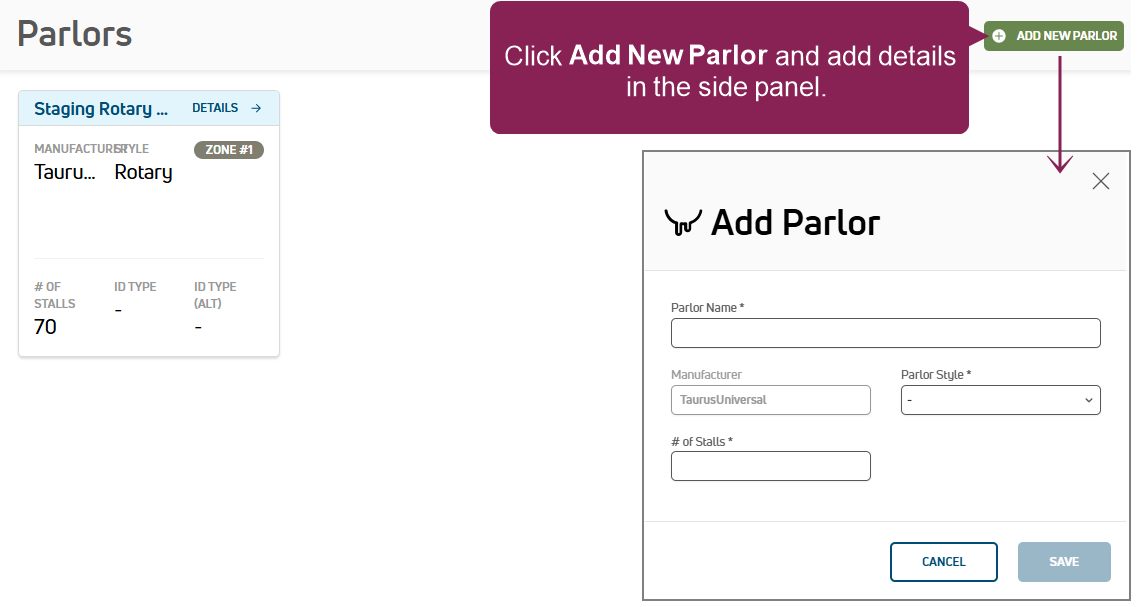
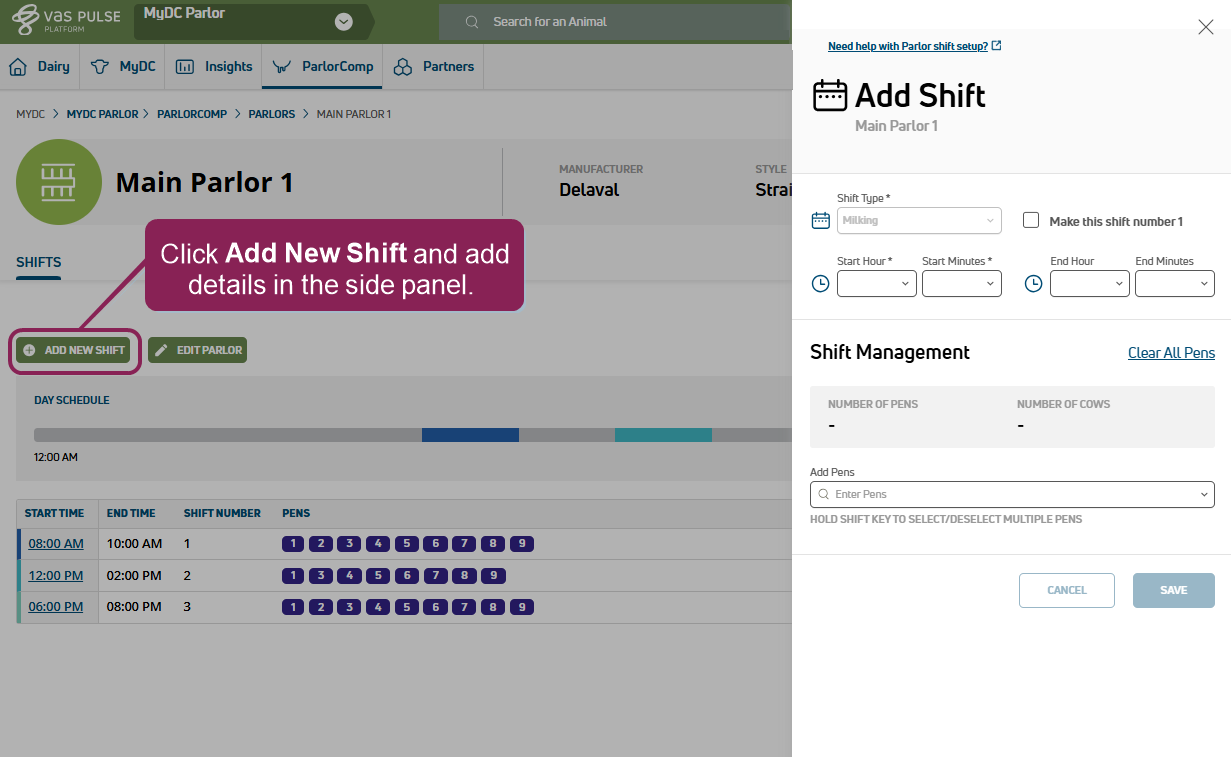
After the integration is connected, go to PULSE and select **ParlorBoss > Parlors** to add your parlor and milking shift details. Follow the guidelines below when adding your parlor details:
::::VerticalSplit{layout="middle"}
:::VerticalSplitItem
:::
:::VerticalSplitItem
:::
::::
- Click **Add New Parlor** at the top of the page to add your parlor.
- Click **Add New Shift** at the top of the page to add each of your milking shifts and associated details.
::::ExpandableHeading
### For help filling out the shift details, click here!
- **Shift Type:** Select either a **Milking** or **Cleaning** shift.
- **Start and End Hours/Minutes:** Enter the times at which you want the new shift to start and end. The system warns you if you attempt to create a shift at a time that already has a shift scheduled.
:::hint{type="info"}
The format of the start and end times can be changed from standard time to 24-hour time in your Platform account settings. See [Edit Your User Account](docId\:J54JU6hYMdyZj6lA7Euqf) to learn more.
:::
- **Shift Management:** This section displays the number of pens currently assigned to the shift as well as the total number of animals in those pens. You can click the **Clear All Pens** link to remove all of the pens assigned to the shift.
- **Add Pens:** Enter the numbers of the pens you want assigned to the shift, separated by commas, or use a dash to indicate a range of pens. Click the "x" beside a pen:inlineImage[]{src="https://platform-docs.vas.com/en-us/Skins/Default/Stylesheets/Images/transparent.gif" alt caption width="16" height="16"} number to delete it from the shift. You can also hold the shift key and check multiple pens from the drop-down.
:::hint{type="info"}
Pens do not need to be added in milking order.
:::
::::
- When complete, check the **Day Schedule **at the top of the page for a quick overview of your daily scheduled shifts:
- If necessary, you can edit shifts or parlors, as well as delete shifts:
- **Edit Shift Details:** To edit a shift's details, click the edit icon :inlineImage[]{src="https://platform-docs.vas.com/en-us/Content/Resources/Images/Platform/edit-icon.png" alt caption width="22" height="23"}.
- **Delete a Shift:** To delete a shift, click the delete icon :inlineImage[]{src="https://platform-docs.vas.com/en-us/Content/Resources/Images/icons/trashcan-blue-outline-on-white.png" alt caption width="25" height="25"}.
- **Edit Parlor Details:** Click the **Edit parlor** button in the upper left side of the page.
:::::
::::ExpandableHeading
## Troubleshoot Connection Issues
If you notice missing data (indicated by a hyphen "-") in your PULSE ParlorBoss reports, try the following troubleshooting steps:
1. Verify that ParlorBoss is running and wasn't closed accidentally.
2. Confirm the connection between ParlorBoss and DairyComp is active by checking your ParlorBoss logs and making sure that data is refreshing and sending to DairyComp as expected.
3. Check the ParlorBoss Autoupdate option to make sure it is turned on and set to a time outside of your standard milking shifts to avoid data interruptions. See [Configure Auto Update in ParlorBoss](docId\:yNsovrnOiZYMkJxEVZvTP) for instructions.
4. Restart the ParlorBoss server.
5. Restart the DairyComp server.
:::ExpandableHeading
### Learn more about how ParlorBoss sends data to PULSE!
ParlorBoss pulls required animal tasks from DairyComp every 15 minutes. ParlorBoss also pulls PULSE milk shift configuration details to determine when shifts are scheduled to start and end. At the end of each milking shift, ParlorBoss sends raw parlor data to PULSE for reporting purposes. ParlorBoss checks for shift configuration changes in PULSE every 10 minutes.
:::
::::